

Invoices Overview
Review invoice activity, filter the invoice list, and cancel invoices from Invoices overview.
The Invoices section provides a centralized view of generated invoices across your customers, contracts, and billing cycles. It shows finance and operations teams all invoice activity, track billing status, and manage invoice workflows in a single location.
Invoices are designed to reflect the output of your configured pricing, subscriptions, and usage data. This section helps surface the relevant billing information in a structured and operationally focused format. This applies for reviewing draft invoices before finalization, validating billed usage, or tracking invoice history for a customer account.
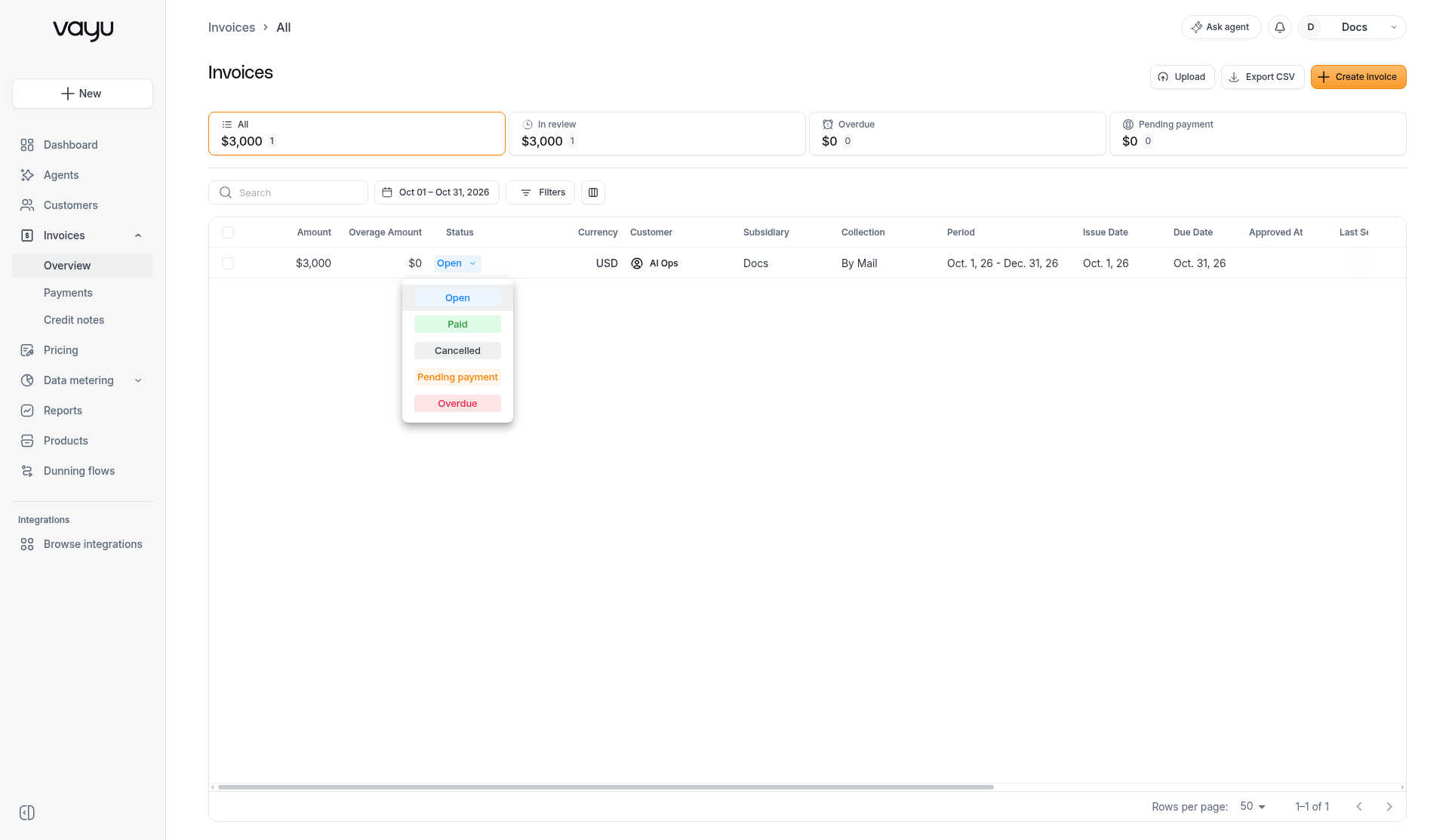
At the top of Invoices → Overview, status cards, Search, a date range, and Filters narrow the invoice list. The table below shows the invoices that match. Every control is described in Filtering the invoice list.
Reviewing Invoice Activity
The Invoices section allows you to view and manage invoices generated for your customers and serves as the primary workspace for reviewing billing activity.
From this view, you can see invoices across customers and contracts. Prior to approving each invoice, you can also apply changes to individual invoices then approve, send & sync each invoice or multiple invoices at once.
Working With Multiple Invoices
From the invoice list view, you can use the Bulk Actions menu to take actions on multiple invoices simultaneously, allowing for:
- Reviewing groups of invoices
- Applying bulk actions where relevant, such as status changes or multiple approvals
- Navigating efficiently across large invoice sets
This can be especially useful for high-volume billing operations.
Filtering the invoice list
Invoices → Overview has four ways to narrow the list: the status cards, Search, the date range, and Filters.
Selecting a status card, or typing in Search, updates the page address. Filters rows are stored in the page address too, so they survive a reload and can be shared or bookmarked.
The invoice list has no saved views.
Status cards
Four cards sit above the table. Select one card at a time. Each card shows a total amount and an invoice count. The count follows the date range that is selected:
- All, selected by default. All clears the card selection.
- In review
- Overdue
- Pending payment
Search
Search is the field to the left of the date range, with a magnifying-glass icon. It matches a customer name or part of an invoice ID.
Date range
The date button shows the current range, for example Oct 01 – Oct 31, 2026. The default range is the current month.
Select the button to open Select range. Type a start date and an end date, or pick them with the calendar icons. You can also choose a preset:
- This month
- Last 30 days
- Last 7 days
- Last month
- Next month
- A year preset for each year shown in the popover, such as 2026 and 2025
The range filters by issue date. For example, when the current month is October, Next month includes an invoice issued on November 1 whose period is October.
Filters
Filters opens a builder. When rows are active, the button shows the count, for example Filters 1.
Each row has a field, an operator, a value, and a trash icon that removes that row. The field menu and the operator menu start on Select.... The field menu is searchable.
The first row is labeled Where. Each row you add is labeled And, so every row has to match. Add filter stays disabled until the current row is complete. Clear filters removes every row.
Date fields have no between operator and no relative dates. To cover a span, add one row with Is after and another row with Is before. For a ready-made issue-date window, use the date range button instead.
Filter fields
| Field | Operators | Values |
|---|---|---|
| Contract status | Is any of, Is not any of | Pending review, Scheduled, Active, Inactive, Expired, Terminated, Pending termination, Error |
| Contract | Is any of, Is not any of | Contracts in your account (multi-select) |
| Products | Is any of, Is not any of | Products in your account (multi-select) |
| Amount | Equals (default), Greater than, Less than, Greater than or equal, Less than or equal | A number |
| Billing status | Is any of, Is not any of | Open, Paid, Cancelled, Pending payment, Overdue. The list is searchable. |
| Due date | Is on (default), Is after, Is before | A single date |
| Issue date | Is on, Is after, Is before | A single date |
| Last sent | Is on, Is after, Is before | A single date |
| Currency | Is any of, Is not any of | USD, EUR, GBP, ILS, CAD, AUD, COP, BRL, ARS, INR, MXN, CHF |
| Customer ID | Contains | Text |
| Parent customer | Contains | Text |
| Customer status | Is any of, Is not any of | Active, Inactive, Churned, Trial |
| Country | Contains | Text |
| State | Contains | Text |
| Payment provider | Is any of, Is not any of | PayPal, Stripe, Wire, ACH, Vayu, Wallet, NetSuite, QuickBooks, Xero, AWS, GCP, Azure, By Mail |
| Period | Contains | Text |
| Workflow | Is any of, Is not any of | Draft, Approved, In review |
| Overage | Is | Yes / No toggle. The default is Yes. |
| Sync integration | Is any of, Is not any of | None, Synced, Failed |
| MP sync | Is any of, Is not any of | Synced, Failed, Processing, None |
| Manual review | Is | On or Off (dropdown) |
| Yearly commitment | Is | Yes / No toggle |
| Usage | Is | Yes / No toggle |
| PO# | Contains | Text |
| Memo | Contains | Text |
| Subsidiary | Is any of, Is not any of | Subsidiaries in your account (multi-select) |
Is any of and Is not any of take one or more values. Contains and Is are fixed. Those fields keep that single operator.
There is no Invoice Type: One-Off filter. See One-Off Invoices.
Examples
Overdue invoices in EUR above an amount
- Open Filters.
- Set Billing status to Is any of and select Overdue.
- Select Add filter. Set Currency to Is any of and select EUR.
- Select Add filter. Set Amount to Greater than and enter the amount.
A date span with Is after and Is before
- Open Filters.
- Set Issue date to Is after and choose the start date.
- Select Add filter. Set Issue date to Is before and choose the end date.
Use the same pair of rows on Due date or Last sent when the span should follow that date instead.
Table controls
- Select a column header to sort. The sortable columns are Amount, Overage amount, Status, Customer, Period, Issue date, Due date, Approved at, Last sent, Invoice, Workflow, and Contract. Currency, Subsidiary, and Collection cannot be sorted.
- Column settings, the icon button to the right of Filters, shows or hides columns.
- Rows per page offers 10, 25, 50 (the default), 100, and 500.
Cancelling an Invoice
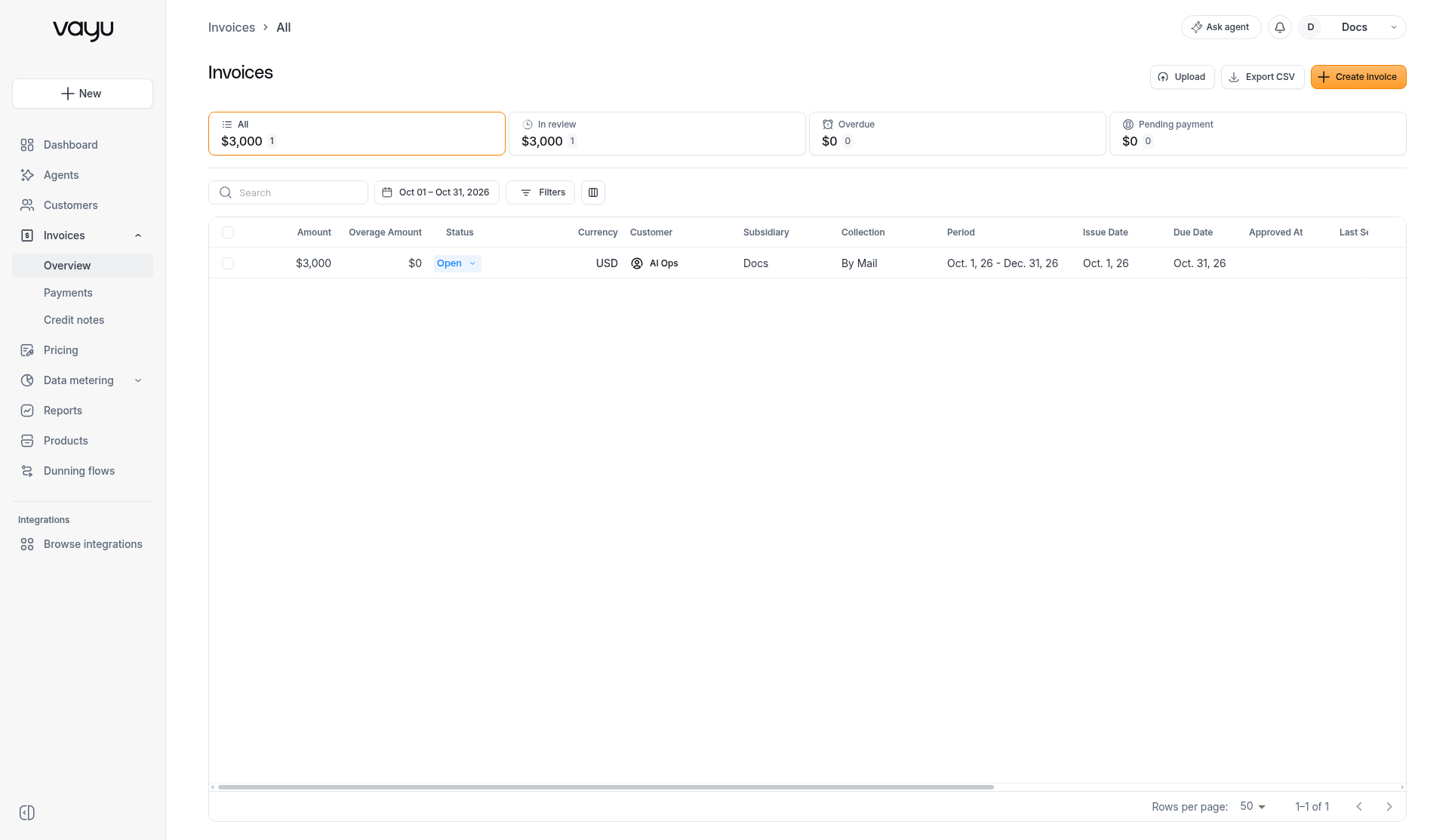
You can cancel an invoice directly from the Invoices Overview page.
To cancel an invoice:
- Open the Invoices page.
- Locate the invoice you want to cancel.
- Click the invoice's current status in the Status column.
- Select Cancelled from the status menu.
The status changes instantly. There is no reason dialog.
The invoice remains visible in the invoice list with a Cancelled status, allowing you to retain a record of it without treating it as an active or collectible invoice.
The status menu options, in order, are Open, Paid, Cancelled, Pending payment, and Overdue.
Review-Status Lifecycle
Invoices move through the review-status lifecycle:
Future → Draft → InReview → Approved
Dynamic View Vs. PDF View
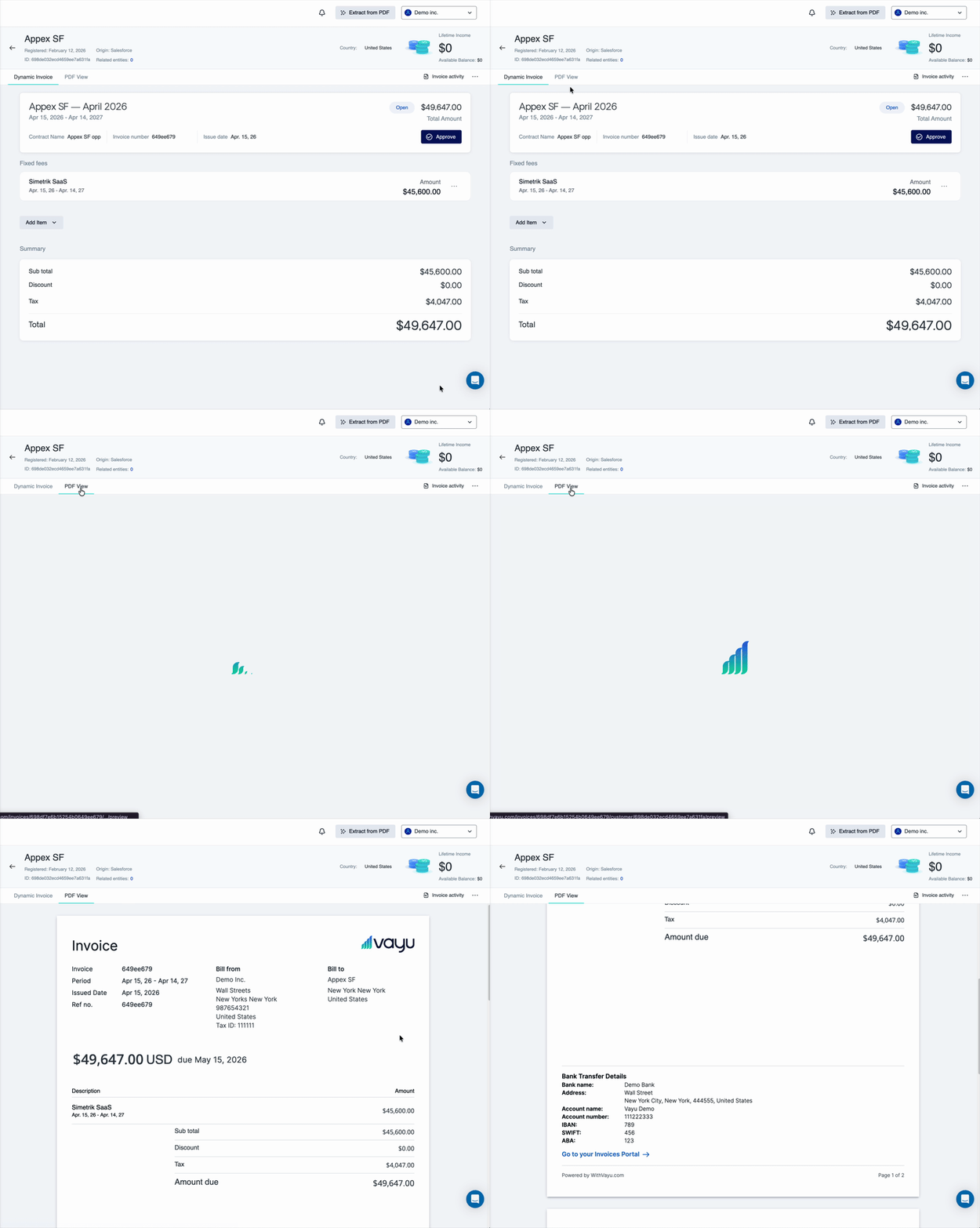
Each invoice includes a dynamic view that displays how the invoice was calculated as well as the usage consumption for each product over the invoice period.
From this view, you can see usage accumulation over the invoice period and how charges are broken down within the invoice. Within an invoice, usage is displayed as it accumulates across the billing period.
The dynamic view includes an activity drawer with an email delivery timeline, per-integration ERP sync tabs, product-mapping dialogs, inline-editable invoice number, inline-editable issue and due dates, and feature-flagged per-invoice FX override.
This allows you to see how usage grows or spikes during the invoice timeframe and to make changes for consumption in later billing periods.
Each invoice can also be viewed as a PDF, which represents the finalized invoice format for sharing, sending, downloading, and record keeping. The PDF can also include clickable links in its digital form, such as a Pay Now link.
Sales Tax
Vayu supports manual customer tax rates, automated tax calculation through Anrok or Stripe Tax, and tax calculated downstream by your ERP. Select the approach that matches your system of record.
Automated providers require customer address information and product tax mappings. Only one automated tax provider can be active at a time.
Provider-specific setup is documented in each integration guide: