

Create Plan
Create a reusable plan template or customer contract in Pricing.
Use Create Plan when you need to define a reusable plan template or start a customer contract from the Pricing workflow.
For the full Pricing workspace overview, including the plans list, Plan Templates tab, and product categories, see Pricing Overview.
Create a Plan Template
- Select Pricing from the left-hand menu.
- Select + Create in the upper-right corner.
- Choose the option to create a new template.
- Name the plan and add an optional description.
- Define the plan settings, including start date, duration, billing interval, billing method, and renewal behavior.
- Add at least one product.
- Configure fixed fees, usage-based fees, credits, discounts, and product modifications as needed.
- Select Save Plan and Continue.
After saving, Vayu redirects you to the plan that it created.
Create a New Contract
Create a contract to define a customer's pricing, billing terms, and products.
Step 1: Start a New Contract
From Pricing, click New to open the Create a new pricing plan window.
Select Start a new contract to create a custom pricing plan for a specific customer, then click Next.
You can also use this screen to create a reusable template or start from an existing template.
Step 2: Select the Customer and Start Date
In Create a new contract:
- Select the customer from Search for a customer.
- Select the date when the contract should begin.
- Select the Contract type. Standard is selected by default.
- Click Next.
Vayu opens the contract builder.
Step 3: Configure the Contract Terms
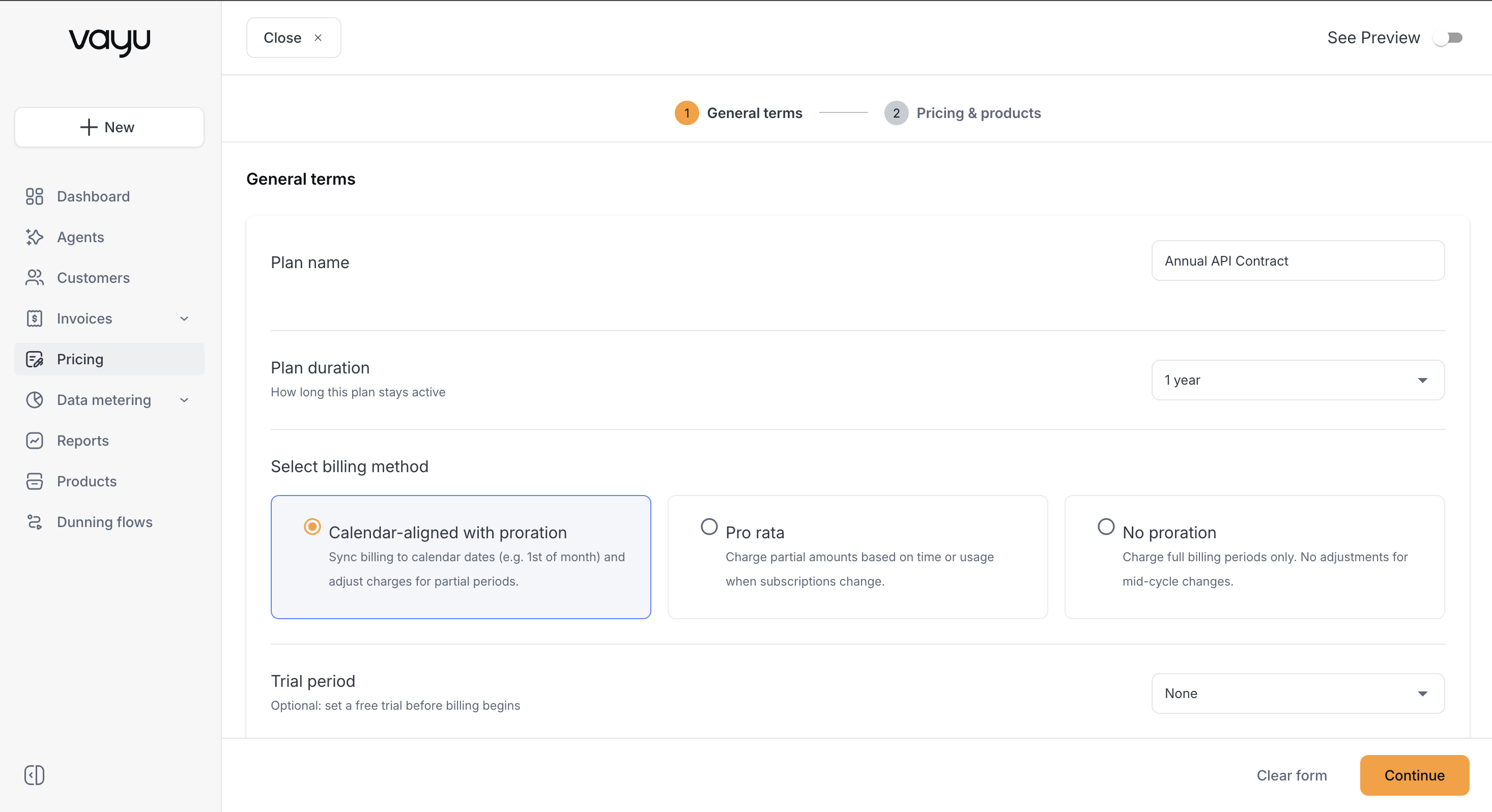
The contract builder starts with General terms. Enter the basic contract and billing information, including:
- Contract Name — Enter a name for the contract.
- Customer Name — Confirm the customer associated with the contract.
- Start Date — Confirm or update the contract start date.
- Plan Duration — Select how long the plan remains active.
- Signature Date — Enter the date used to begin billing and contract terms, when applicable.
- Invoices Currency — Select the currency used for invoices. You can use the customer's default currency or select another currency.
- Billing Method — Choose how Vayu handles billing periods and partial periods:
- Calendar-aligned with proration — Align billing to calendar dates and adjust charges for partial periods.
- Pro rata — Calculate partial charges based on the portion of the billing period used.
- No proration — Bill full periods without adjustments for partial periods.
- Trial Period — Add a free trial before billing begins, if applicable.
- PO Number — Add a purchase order number for invoice reference.
- Memo — Add a default memo for invoices created under the contract.
- Auto Renewal — Enable this option to renew the plan automatically when its term ends.
- Set as Active — Set the contract as active when it is created.
Default values are applied where available:
- Contract type defaults to Standard.
- Plan Duration defaults to 1 year.
- Billing Method defaults to Calendar-aligned with proration.
- Trial Period defaults to None.
- Auto Renewal defaults to On.
As you configure the contract, use the Plan Preview on the right to review the current contract amount and other pricing information.
When you finish configuring the general terms, click Continue to move to Pricing & Products, where you can add and configure the products and pricing included in the contract.
Add Pricing and Products
After you complete the contract's general terms, continue to Pricing & Products. From here, you can add service fees, usage-based fees, credits, and discounts to the contract. These options are independent, so you can add only the items that apply to the customer's agreement and configure them in any order.
Service Fees
Use Service Fees to add fixed charges to the contract.
Click Add Fees and select the type of fee you want to add:
- One Time Fee — A single one-time charge.
- Subscription — A recurring fixed monthly charge.
- Contract Terms — A contract commitment.
- Commission — A percentage of the total amount.
- Credit — A prepaid balance that can be used for future charges.
You can add multiple service fees when a contract includes more than one type of fixed charge.
Usage-based Fees
Use Usage-based Fees for products whose charges depend on customer usage.
Click Set Items & Pricing to add usage-based products and configure their pricing. Usage pricing can support models such as tier-based or volume-based pricing, depending on how the product is configured.
Credits & Discounts
Use Credits & Discounts to apply promotional or pricing adjustments to the contract.
Click Add Promotions to add the credits or discounts included in the customer's terms.
The number displayed next to each tab shows how many items of that type have been added to the contract.