

Dunning Reminders and Workflows
Create and manage dunning workflows for invoice collection.
Overview
Dunning workflows automate invoice collection. Each workflow defines when a reminder should run, which invoices it applies to, and what action Vayu should take.
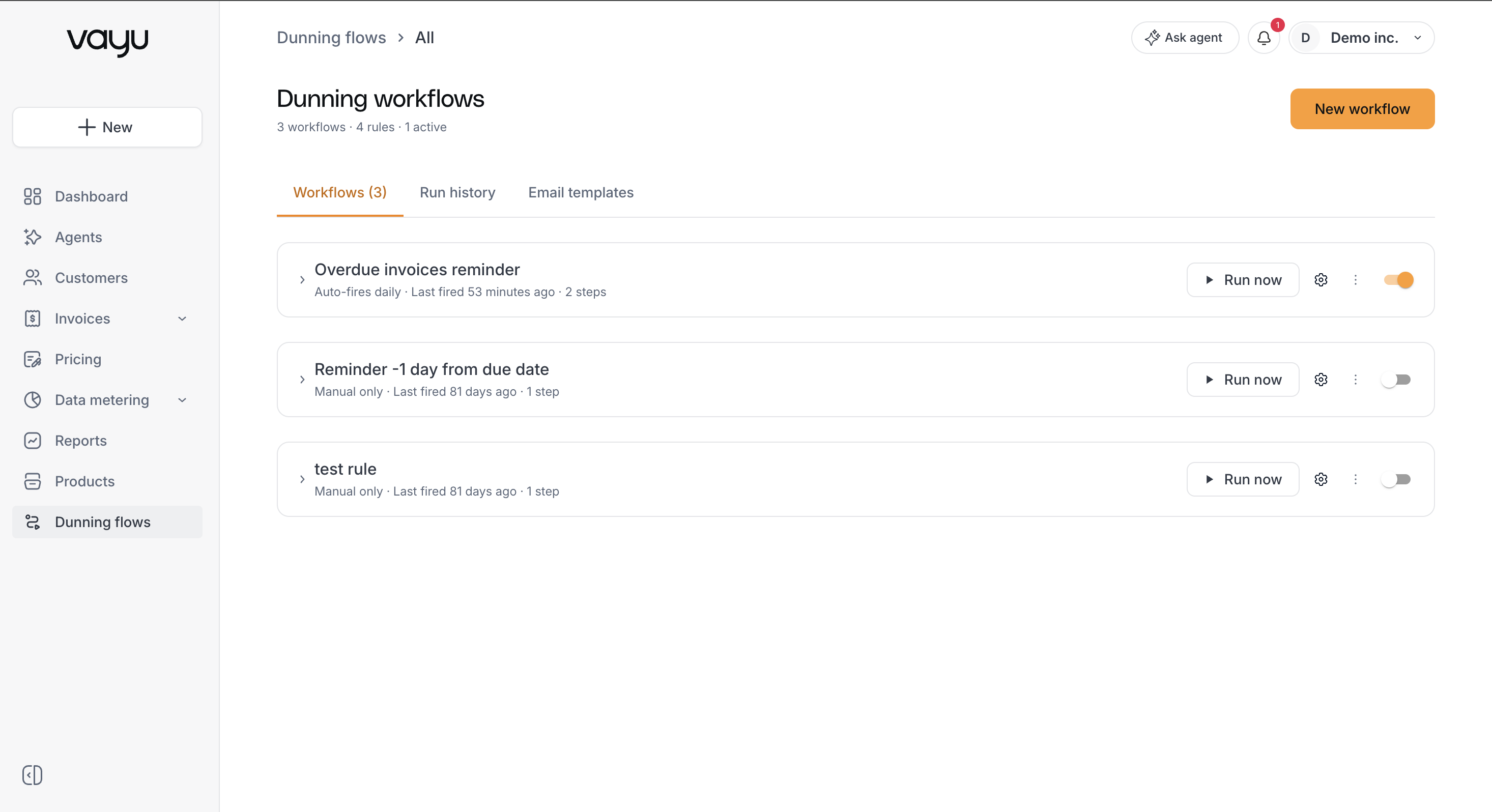
By default, the Dunning page is empty. Vayu does not include four starter templates by default.
Navigate the Page
The Dunning page includes workflow management and run-history review.
The page does not include a View Collection Performance section.
Understand a Workflow
Each workflow contains one or more steps. Each step includes a trigger, timing, conditions, an action, and the number of times it has fired during the current month.
The trigger is the event or date used as the reference point for the step, such as the invoice due date or the date an invoice becomes overdue.
Timing shows when the step runs relative to its trigger. For example, T-7 means seven days before the trigger, T+0 means on the trigger date, and T+15 means 15 days after the trigger.
Conditions determine which invoices qualify for the step. For example, a step may apply only to invoices with Status = Open or only when Amount > $5,000.
Filtering with tags is not available. Do not configure conditions such as tag = enterprise.
The action defines what Vayu does when the trigger, timing, and conditions match. The fires value at the end of each step shows how many times it has run during the current month.
Email templates are not yet available.
Create a Workflow Manually
Select + New Workflow to create a workflow from scratch.
Enter a name, define how the workflow should run, and add the required steps. For each step, configure the trigger, timing, conditions, and action.
Review the completed workflow before saving it. Enable the workflow only after all required fields are configured.
Manage Workflows
Use Run Now to execute a workflow immediately, bypassing its normal schedule.
You can use the settings control to edit workflow configuration and use the status toggle to enable or pause automatic execution.
Duplicating an existing workflow is not available.
Pausing a workflow preserves its configuration while preventing future automatic runs. For major changes, pause the workflow first, update the settings, review the steps, and then re-enable it.
Review Run History
Open the Run history tab to review individual rule executions and their outcomes.
Use the available filters to narrow the results.
The results table shows workflow execution information and the final outcome for each run.
A run can have one of four outcomes: Sent indicates that the message was sent successfully. Skipped indicates that the rule condition was not met, or that the rule or workflow was inactive. Failed indicates that the run did not complete successfully. Partial indicates that the run succeeded for some recipients but failed for others.
To investigate a failed or partial run, select it to view logs and errors for individual recipients.