

Payments
Manually update invoice payment status when payments are received outside of integrated payment systems
Overview
Use the mark as paid feature to manually update an invoice's payment status when you receive payment through channels not integrated with Vayu, such as wire transfers, checks, or external payment processors.
When to Mark Invoices As Paid
Mark invoices as paid manually when:
- Wire transfers - Customer pays via bank transfer outside of Stripe or other integrated payment systems
- Check payments - Customer sends a physical check
- External payment processors - Payment is processed through a system not connected to Vayu
- Cash payments - Customer pays in cash (less common for B2B)
- Payment reconciliation - Correcting payment status after manual verification
Marking an Invoice As Paid
Through the UI
- Navigate to Invoices
- Locate the invoice you want to mark as paid
- Click on the invoice to open the detail view
- Click Mark as Paid
- Confirm the action
The invoice status will update to Paid and the paid date will be recorded.
Through the API
Use the payment status endpoint to retrieve and verify invoice payment information:
GET /invoices/{invoiceId}/payment-statusThe response includes:
billingStatusfor the current payment statusamountDuefor the outstanding amountamountPaidfor the amount already paidtotalfor the full invoice amountdueDatefor the payment due datepaidAtfor when payment was receivedinvoicePdfUrlfor a link to the invoice PDF
Automatic Payment Status Updates
When using integrated payment systems like Stripe, payment status updates automatically:
- Successful payments - Invoice status updates to Paid in Vayu automatically
- Failed payments - Surface in outstanding balances and AR workflows
- No manual intervention needed - Billing and finance teams see current payment state in real-time
This eliminates the need to manually mark invoices as paid when using integrated payment processors.
Payment Tracking
Once marked as paid:
- The invoice appears in paid invoice filters
- The paid date is recorded for reporting
- Outstanding balance calculations exclude the invoice
- AR aging reports reflect the payment
- The invoice is locked from further editing
Best Practices
- Verify payment receipt - Confirm funds are received before marking as paid
- Document payment method - Add notes about how payment was received
- Reconcile regularly - Match marked payments against bank deposits
- Use integrations when possible - Automated payment tracking reduces manual work and errors
Current Payment UI Entry Point
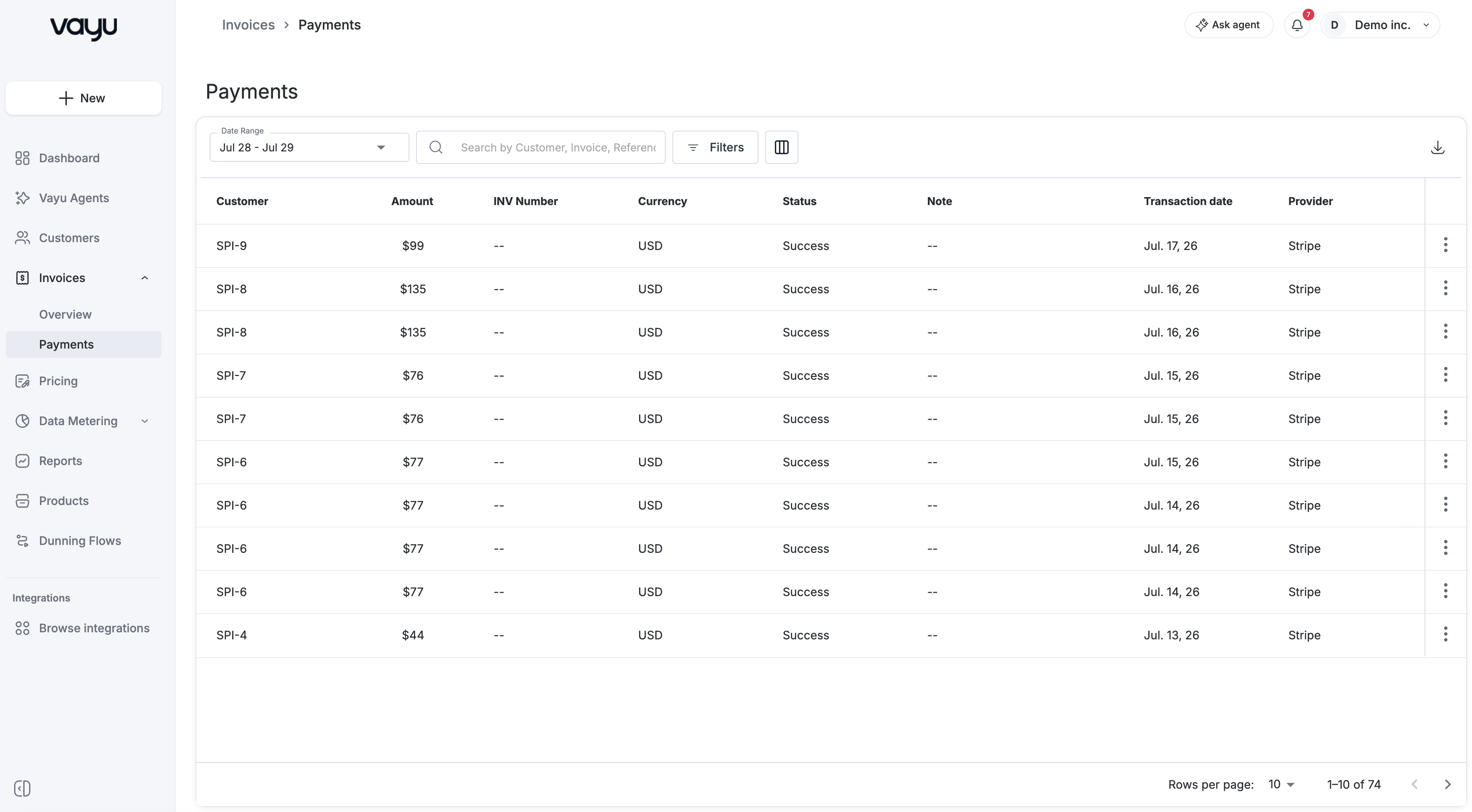
Payments through the UI are performed from the dots menu on both the invoice list page and the invoice details page by selecting Receive payment.
Partial Payments
Payments can be recorded against invoices without settling the full amount. Use partial payments when a customer pays only part of the invoice balance or when payment is received in multiple installments.
When a partial payment is recorded, the invoice status updates to show the remaining balance due. Payment allocation is tracked line-by-line or at the invoice level, and AR aging reports reflect the outstanding balance after the partial payment.
Multiple partial payments can be applied to a single invoice.
Refunds
Refunds record money returned to a customer after payment has been received. Refunds can be issued as credit memos or direct reversals.
Refunds reduce the invoice's paid amount and update AR records. The refund reason and date are captured for audit trails.
Negative payment entries reverse revenue recognition when applicable. Refunded amounts flow through revenue reports with clear delineation.