

Creating Products
Create metered, standard or service, and credit products in Vayu.
Creating Products
Use + Create Product to add a new product to Vayu. Products define what you sell and how that product is billed.
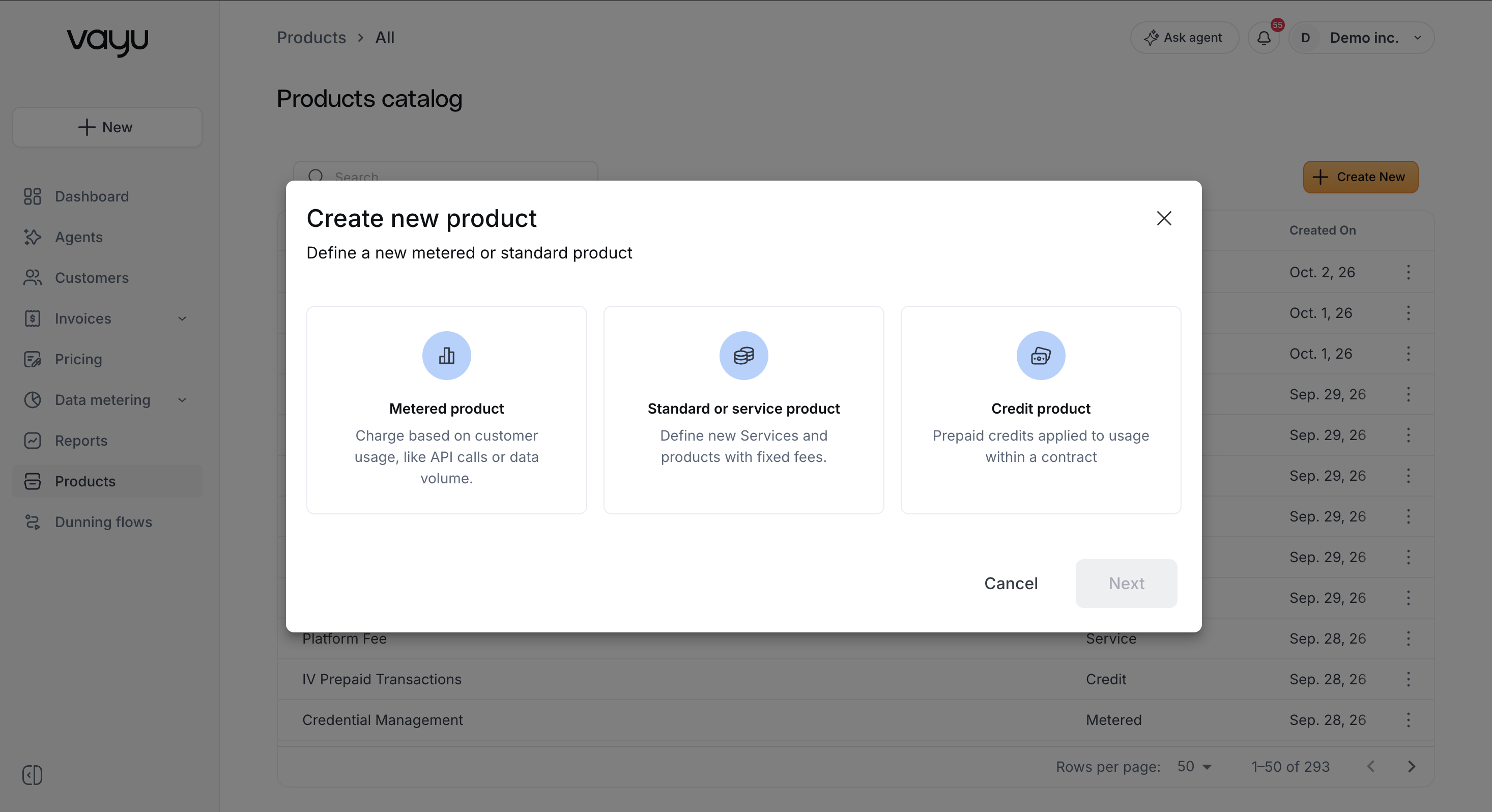
When you click + Create Product, the Create new product window opens. Select one of three product types, then click Next:
- Metered product — For products billed according to customer usage, such as API calls, transactions, storage, or data volume.
- Standard or service product — For products and services sold for a fixed fee rather than calculated directly from usage.
- Credit product — For prepaid credits that customers can purchase and apply toward usage within a contract.
Create a Metered Product
Select Metered product and click Next to open the metered-product configuration.
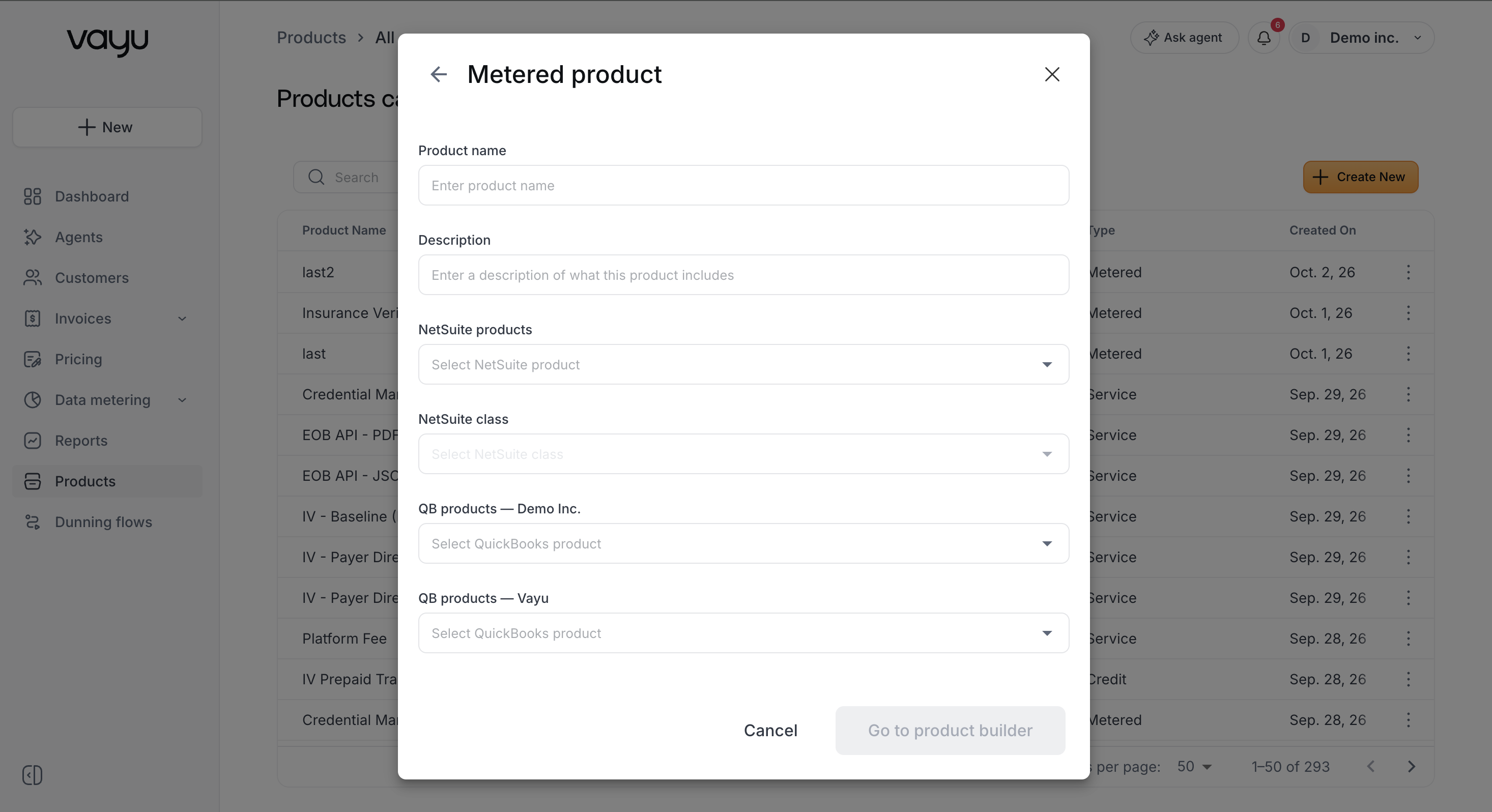
Enter the Product name and, if needed, a Description. You can also map the product to products or accounting records in your connected financial systems:
- NetSuite Products
- NetSuite Class
- QB Products
- QB income account
- Xero Products
After completing the required product information, click Go to product builder to continue configuring the product's usage and pricing structure.
Create a Standard or Service Product
Select Standard or service product and click Next to create a product or service that is not metered by usage.
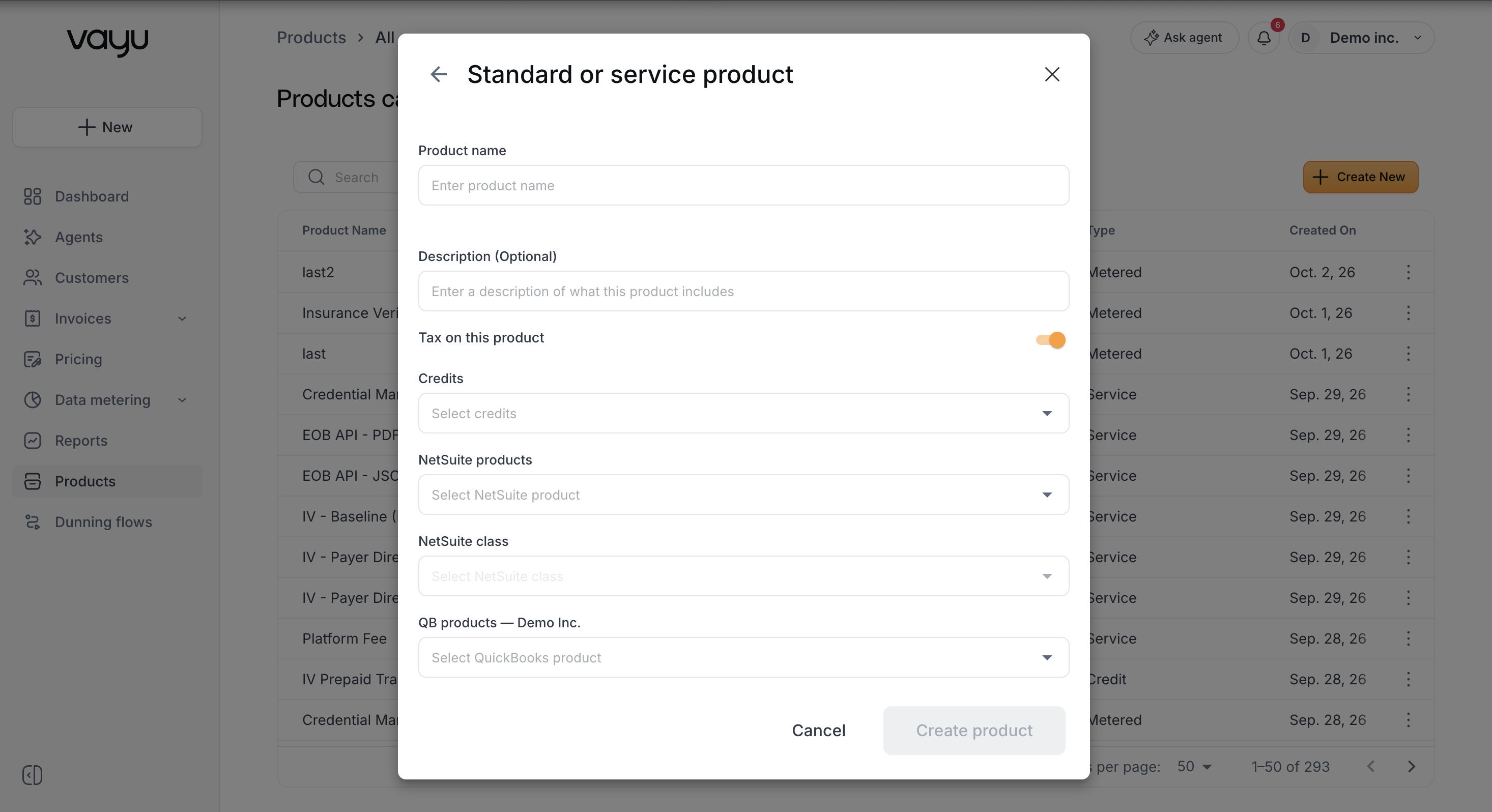
Enter the Product name and optionally add a Description. You can also:
- Use Disable description to prevent the product description from being displayed where applicable.
- Use Tax on this product to specify whether the product is taxable.
- Select a Credit configuration, when applicable.
- Map the product to NetSuite, QuickBooks, or Xero products and accounts.
When the configuration is complete, click Create product.
Create a Credit Product
Select Credit product and click Next to create a prepaid credit that can be applied to customer usage.
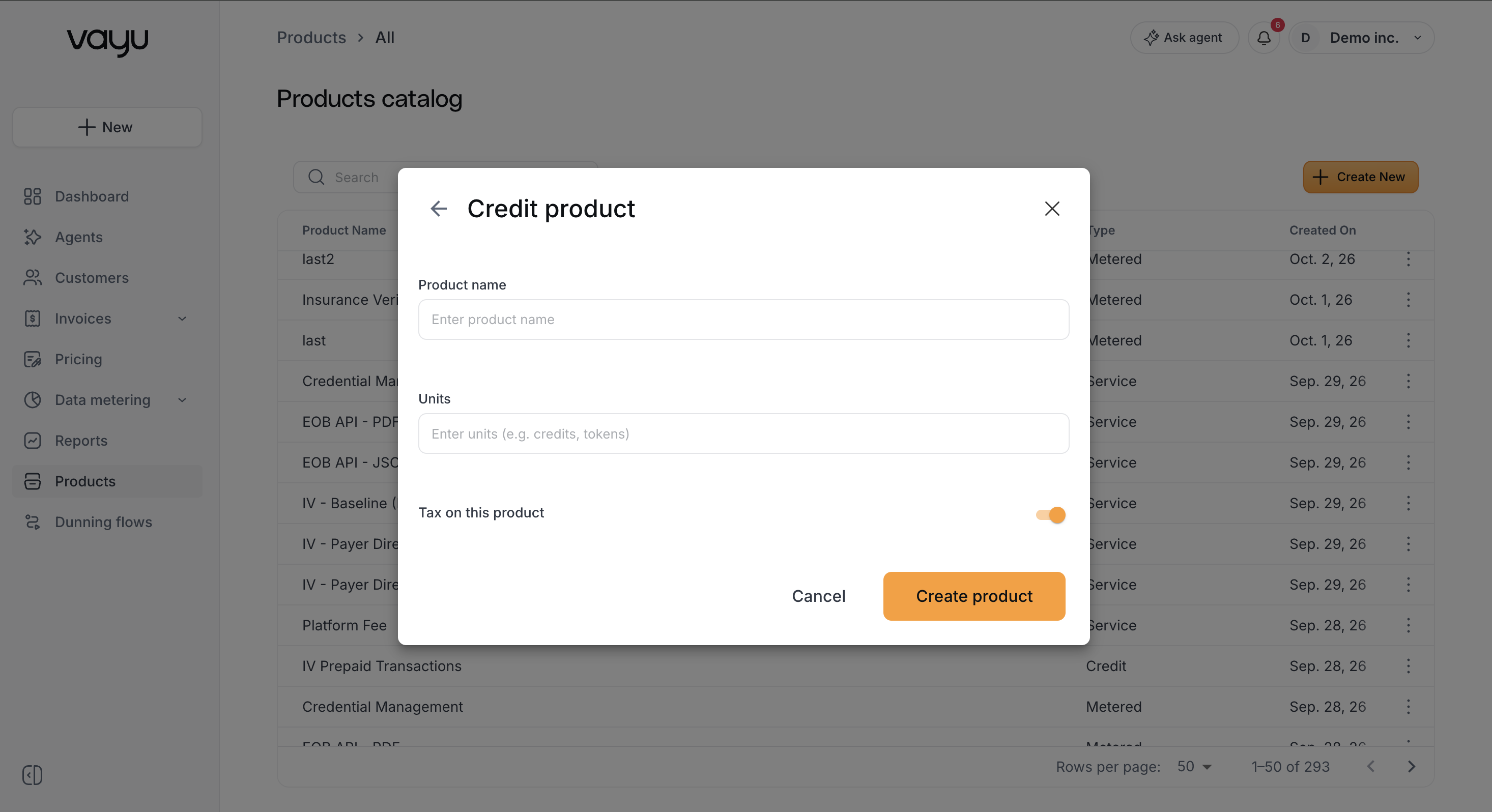
Enter:
- Product name — The name used to identify the credit product.
- Units — The units represented by the product, such as
creditsortokens.
Use Tax on this product to specify whether purchases of the credit product are taxable.
Click Create product to finish.
Product Creation Confirmation
After Vayu successfully creates a product, the product window closes and you return to the product list.
Edit a Product
You can always alter details on an individual product by hitting the three-dot menu to the right and clicking Edit. Change details in the Edit window, then hit the Update Product button.
A confirmation message appears in the lower-left corner of the screen. The message identifies the type of product that was created and confirms that the operation completed successfully. For example:
Credit product created successfully
The confirmation includes a green checkmark and remains visible briefly before disappearing. You can also dismiss it manually using the X.