

Customer Overview
The Customers page organizes all customer profiles in one place and provides a consolidated operational view of customer status, billing configuration, and account metadata. From this page, you can search, filter, review, and manage customer accounts across your environment.
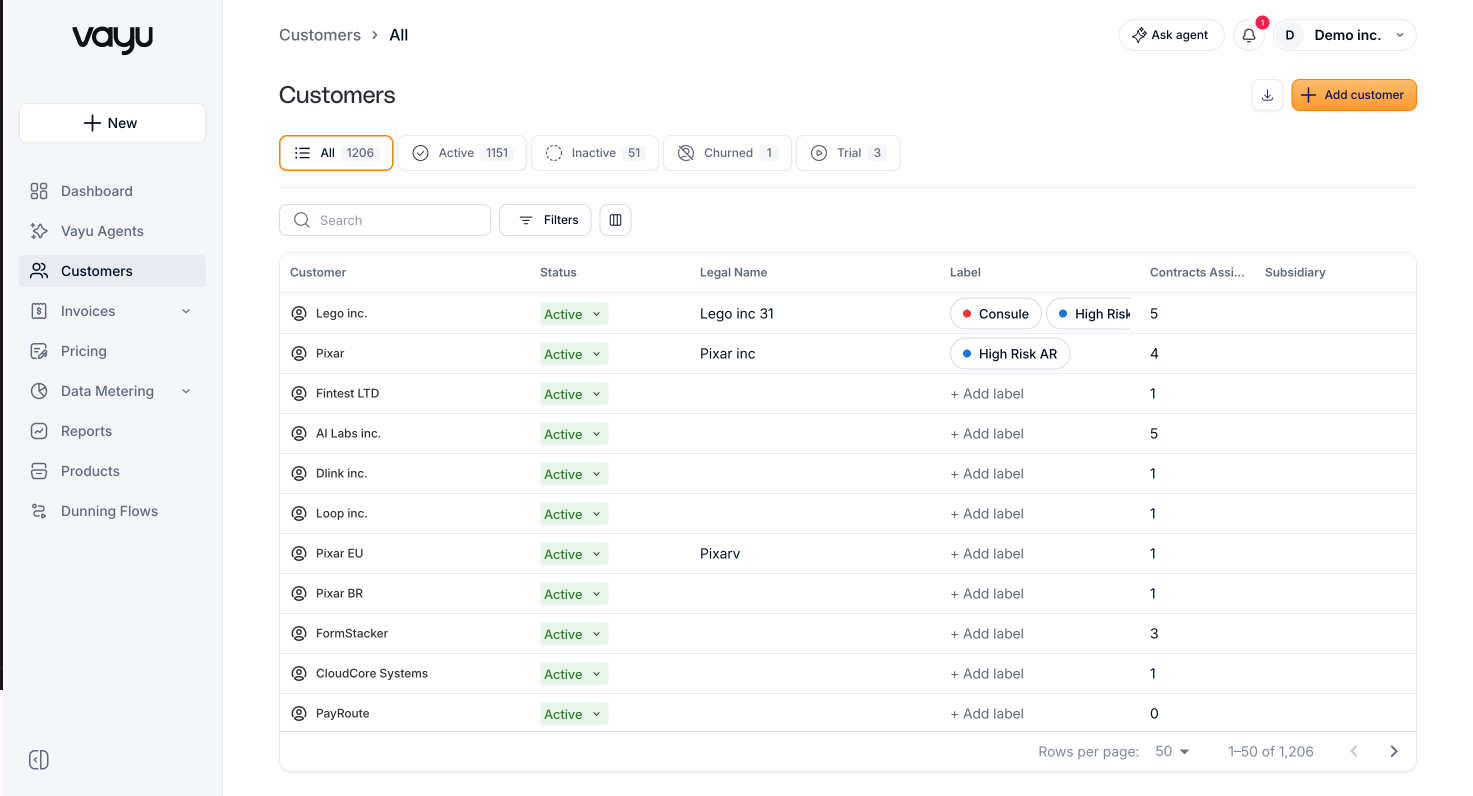
Customer Status Overview
At the top of the page, a status summary bar displays the number of customers in each state: Active, Inactive, Churned, and Trial.
This summary provides a high-level snapshot of customer distribution across statuses. It does not update based on filters or global search results.
Search and Actions
The control bar allows you to quickly locate and manage customers.
The Global Search field lets you search by name, email, or other indexed fields. Results update automatically based on matching records.
The Filters button opens the structured filter builder, allowing more granular control over the displayed results.
The column configuration icon in the customer overview table controls which columns are visible. The Export / Download option exports a CSV of all customers matching the current filters, and the exported columns mirror the columns currently selected in the table view.
To create a new customer, click + Customer.
Filtering Customers
You can filter customer data in a few different ways, including using multiple filters and combining conditions.
You can define conditions using a structured rule format with fields, operators, and values. Depending on the selected field, the available operators may include options such as contains, equals, and is any of, along with other supported operators available in the filter builder.
The available filter fields include:
- Status
- Parent Customer
- Address
- Country
- State
- City
- Postal Code
- Manual Review
- Subsidiary
Multiple filter conditions can be combined to narrow the result set. Filters can be removed individually or cleared entirely.
Customers Table
Below the filter controls, the main customer table displays all customer records that match the current filter state.
Each row represents a single customer profile and includes operational and billing metadata.
Table Columns
The table includes customer data such as Status, Customer Name, Legal Name, Number of Contracts, Subsidiary, Created Date, Address details, Invoice Due configuration, Manual Review state, and Parent Customer relationships, along with any other columns currently available in the customer overview table.
A contextual action menu is available at the end of each row for additional operations. This menu includes the option to delete a customer. The delete action is blocked if the customer contains an active contract.
- Status
- Customer
- Legal Name
- Label
- Contracts Assigned
- Subsidiary
- Address
- Country
- State
- City
- Postal Code
- Invoice Due Date
- Manual Review - On/Off
- Parent Customer
Table Behavior
Columns can be sorted to reorganize the dataset. The table supports horizontal scrolling when additional columns are displayed.
Pagination controls appear at the bottom of the table, where you can define the number of rows per page and navigate between result sets. The current record range, for example 1–50 of 222, is displayed for reference.
Custom Fields
Use custom fields to capture additional information about your customers beyond the standard fields. Custom fields allow you to store business-specific data such as account manager names, customer segments, contract IDs, or any other metadata relevant to your organization.
You can define custom fields in the appropriate configuration area and then populate them on individual customer records. These fields appear on the customer detail page and can be used for filtering, reporting, and segmentation across your customer base.
Custom field values can be set manually through the UI or programmatically via the API when creating or updating customer records. This flexibility ensures your customer data structure adapts to your unique business requirements.