
Invoice Lifecycle
How invoices are generated, the difference between Workflow and Status, approval, and how to fix an approved invoice
Vayu generates invoices automatically from your contracts. Every invoice then moves through two separate tracks: a Workflow that tracks review and approval inside your team, and a Status that tracks payment from your customer. This page explains both, when the next invoice appears, and what to do when an approved invoice needs fixing.
Contracts drive invoices. To learn how editing a contract, adding a phase, or terminating a contract changes its invoices, see Contract Lifecycle.
Workflow vs. Status
Each invoice has two statuses, shown as two columns on the Invoices page. They answer different questions.
| Workflow | Status | |
|---|---|---|
| Question it answers | Is this invoice final and approved by my team? | Has the customer paid? |
| Values | Future, Draft, In review, Approved | Open, Pending payment, Overdue, Paid, Cancelled |
| What changes it | Billing period dates and approval | Approval, issue date, due date, payments, and cancellation |
| Where you see it | Workflow column, and Approve / Approved in the invoice header | Status column, summary cards, and the contract's billing schedule |
The two are connected: an invoice only moves to Pending payment, Overdue, or Paid after it is Approved. Until then its Status stays Open.
Workflow statuses
| Workflow | Meaning |
|---|---|
| Future | The billing period hasn't started yet. Future invoices are hidden from the Invoices page. |
| Draft | A postpaid period is in progress and usage is still accumulating. |
| In review | The invoice is ready to review and approve. |
| Approved | The invoice is final and locked. Vayu issues it, generates the PDF, and sends or syncs it according to your settings. |
What moves an invoice forward
The path depends on whether the invoice is billed in advance (prepaid) or in arrears (postpaid).
- Future until the billing period starts.
- In review from the first day of the period.
- Approved when your team (or an auto-approve workflow) approves it.
- Future until the billing period starts.
- Draft while the period runs and usage accumulates.
- In review the day after the period ends.
- Approved when your team (or an auto-approve workflow) approves it.
Invoices that contain both prepaid and postpaid charges follow the prepaid path while a prepaid charge's period is active, and the postpaid path otherwise.
Vayu updates statuses once a day at 03:00 UTC. An invoice whose period ends today moves to In review in the next daily run.
When the next invoice appears
When you create or change a contract, Vayu generates all of its invoices for the full contract term up front. Most of them start as Future and stay hidden.
To keep one invoice ready for review at all times, Vayu promotes the next Future invoice of a contract when the contract has no other invoice in Draft or In review. This happens even if the invoice's issue date is still in the future.
- A prepaid invoice is promoted to In review.
- A postpaid invoice is promoted to Draft.
Each contract is handled separately. Invoices of other contracts, even for the same customer, don't affect when a contract's next invoice appears.
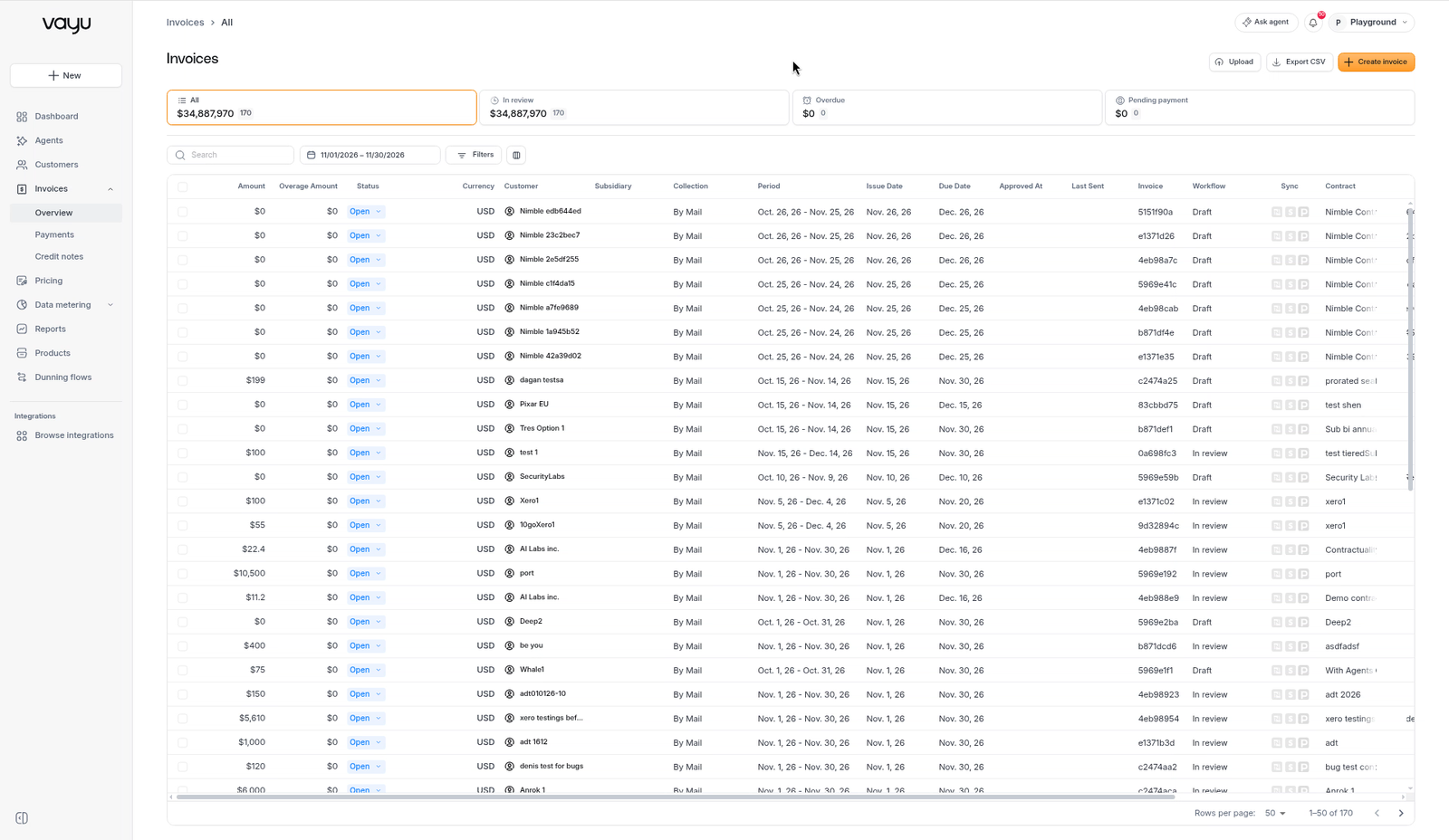
For example, once you approve this month's invoice on a monthly contract, next month's invoice moves out of Future and appears on the Invoices page, ready for you to review ahead of time.
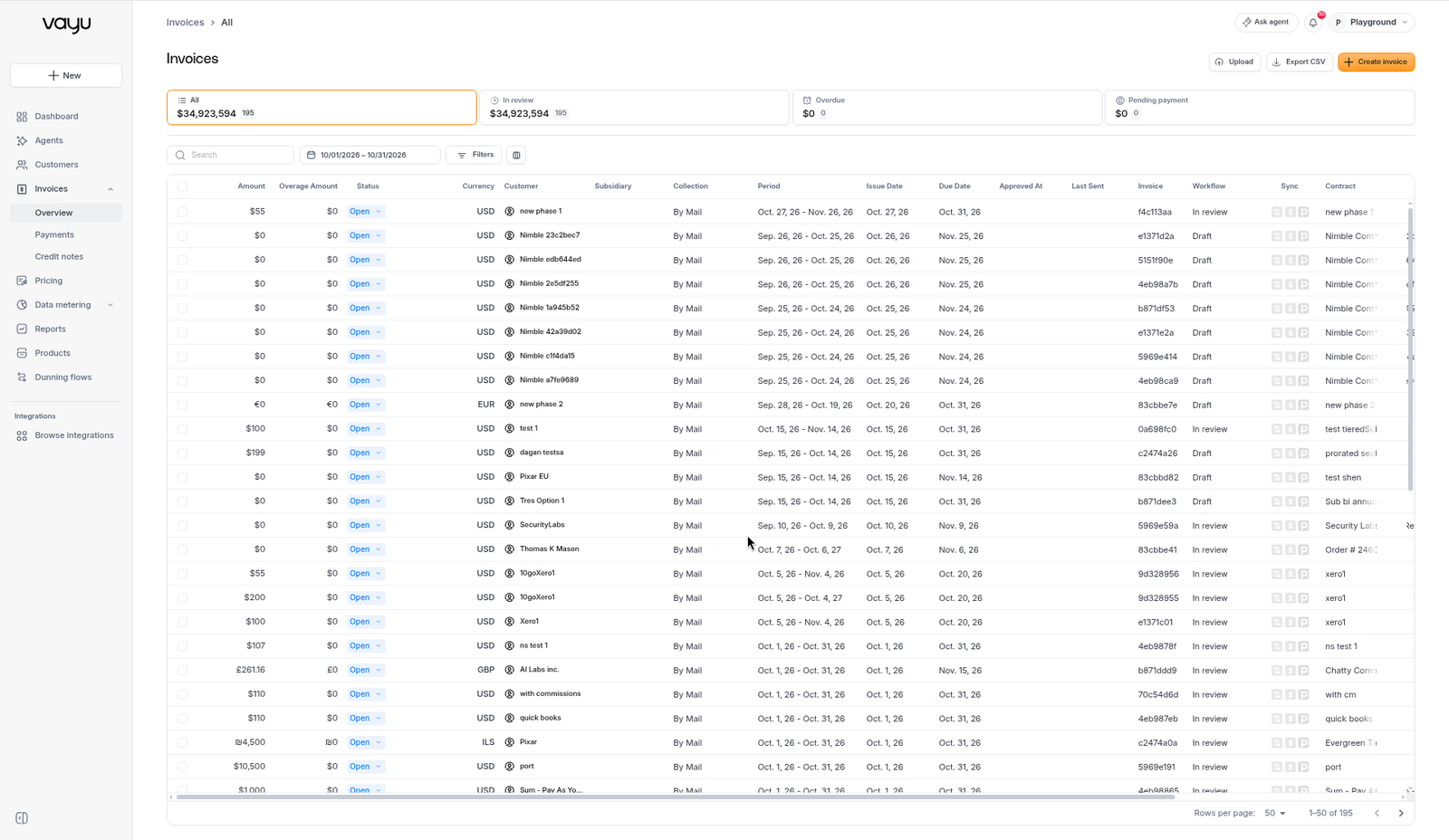
The Invoices page shows the current month by issue date by default. To find next month's invoice, change the date range. You can also see every invoice of a contract, including upcoming ones, in the contract's Billing schedule.
Approving an invoice
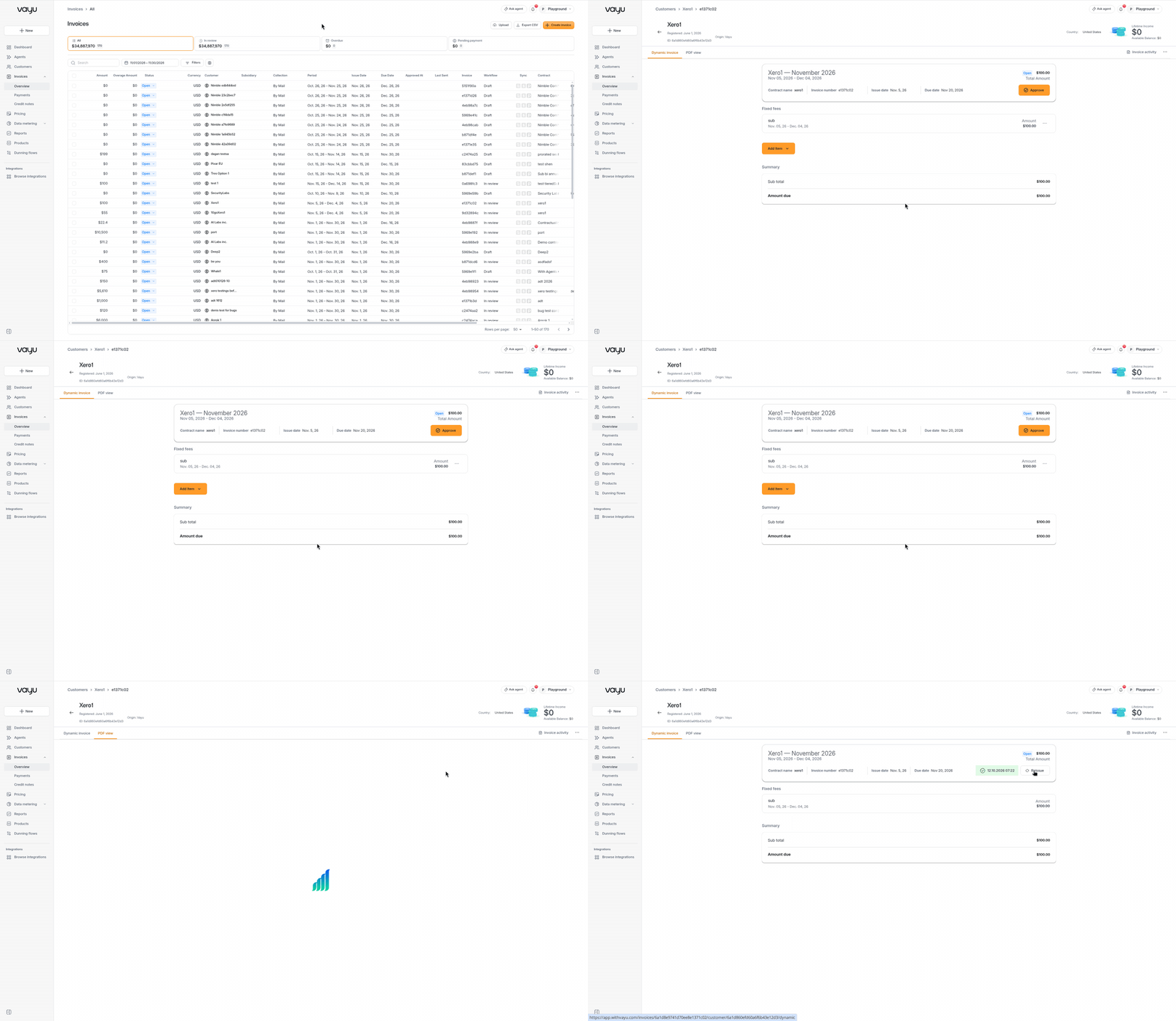
Approval turns an invoice into a final document. You can approve an invoice that is In review:
- Click Approve in the invoice header.
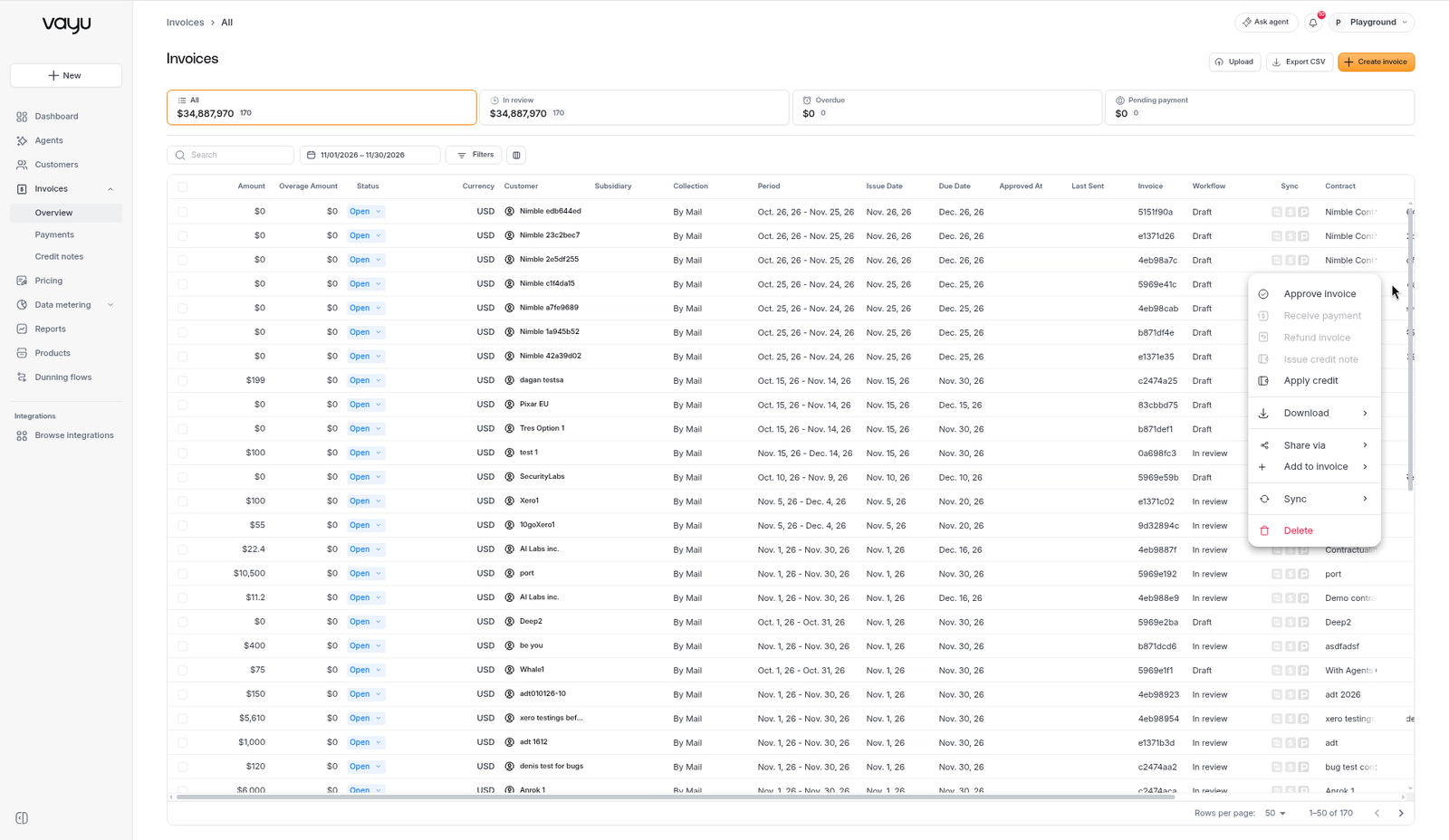
- Choose Approve invoice from the row's ⋮ menu on the Invoices page, or select several invoices and approve them in bulk.
- Approve from Slack, if you have connected Slack notifications.
- Let the Auto-approve invoices ready for review workflow approve invoices that match your rules.
You can also approve a Draft invoice early. Vayu first shows an Approve draft invoice warning, because usage that arrives after approval won't be charged.
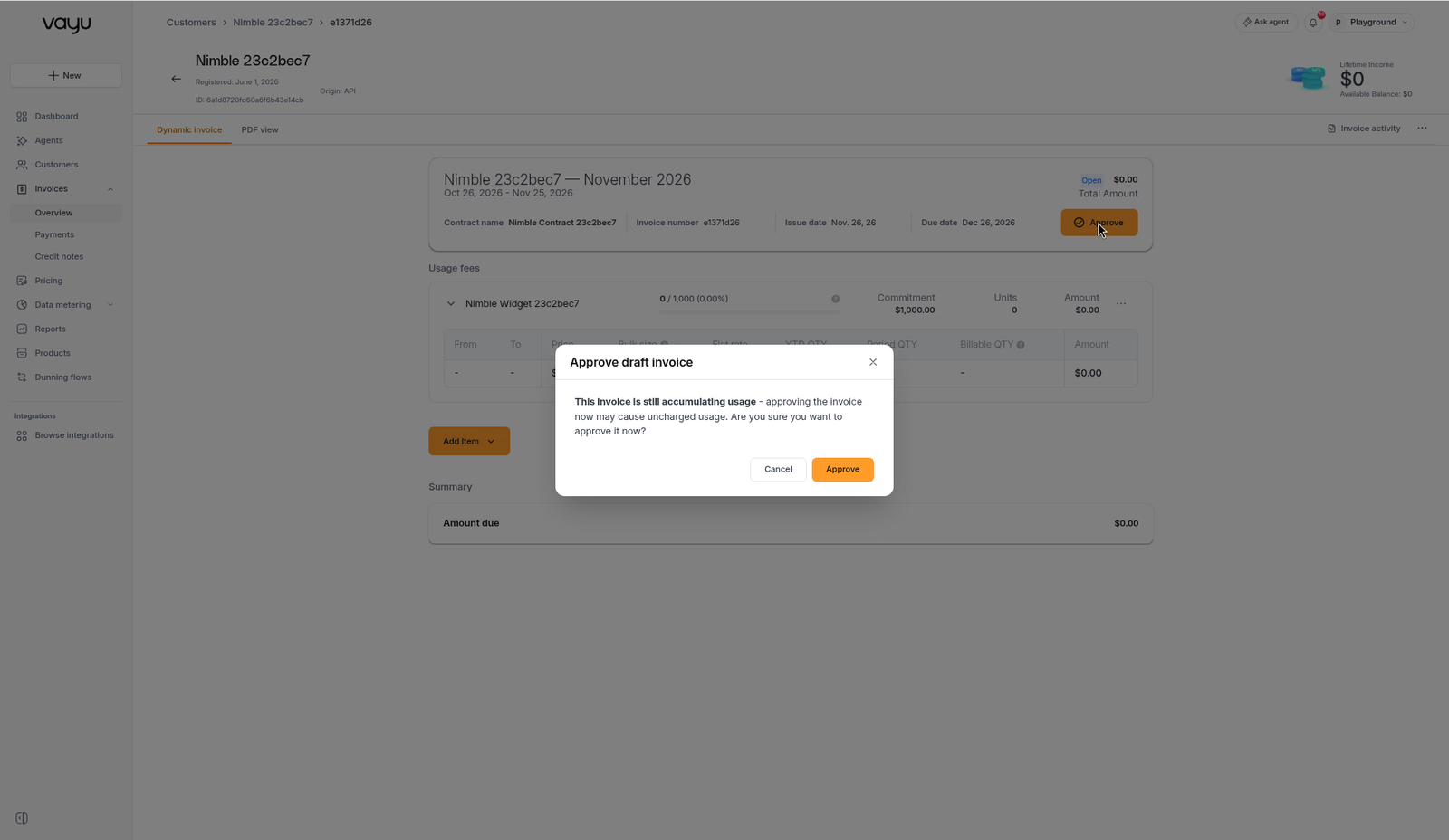
Approve is unavailable while an invoice is still calculating or if its calculation failed.
What happens on approval
The invoice is locked. Contract edits and new phases never change an approved invoice.
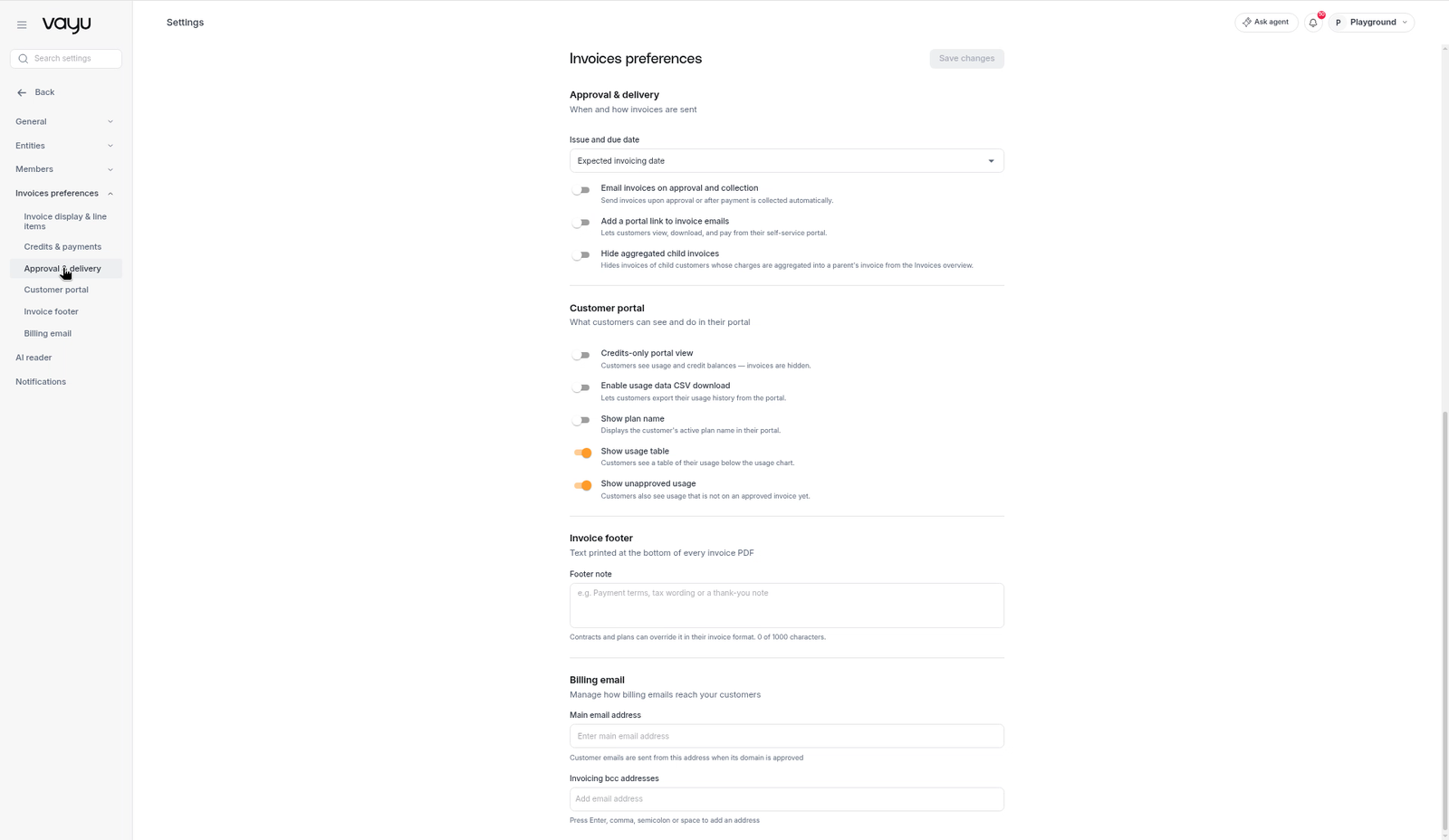
The issue date and due date are set according to the Issue and due date setting in Settings → Invoices preferences → Approval & delivery:
- Expected invoicing date: the issue date is the invoice's scheduled invoicing date (default).
- Approval date, but not before the expected date: the issue date is the approval date, unless you approve before the scheduled invoicing date.
- Approval date: the issue date is the day you approve.
The due date is the issue date plus the customer's payment terms. See Invoice preferences.
Available credits are applied and the PDF is generated.
The invoice is synced to your ERP and emailed to the customer, according to your integration and invoice preference settings.
The Status updates right away: Pending payment if the issue date has arrived, Overdue if the due date has already passed, or Paid if credits cover the full amount.
Vayu opens the invoice's PDF view so you can check the final document.
Payment statuses
| Status | Meaning | How it gets there |
|---|---|---|
| Open | Not yet issued, or not yet approved | Default for every new invoice |
| Pending payment | Approved and issued, waiting for payment | On approval or on the issue date, whichever is later |
| Overdue | Approved, unpaid, and past its due date | Daily update after the due date |
| Paid | Fully paid | Receive payment, Stripe collection, payments synced from your ERP, or credits |
| Cancelled | Voided | Cancelled in the Status dropdown, or Reissue |
Fixing an approved invoice
An approved invoice can't be edited, and contract edits or phases don't change it. Choose the fix based on what went wrong and whether the customer already received it.
| Situation | What to do |
|---|---|
| Usage was incorrect when the invoice was approved | Reissue the invoice |
| The invoice was already sent to the customer | Issue a credit note, then cancel the invoice |
| The invoice was approved but not sent yet | Cancel the invoice |
Reissue an invoice
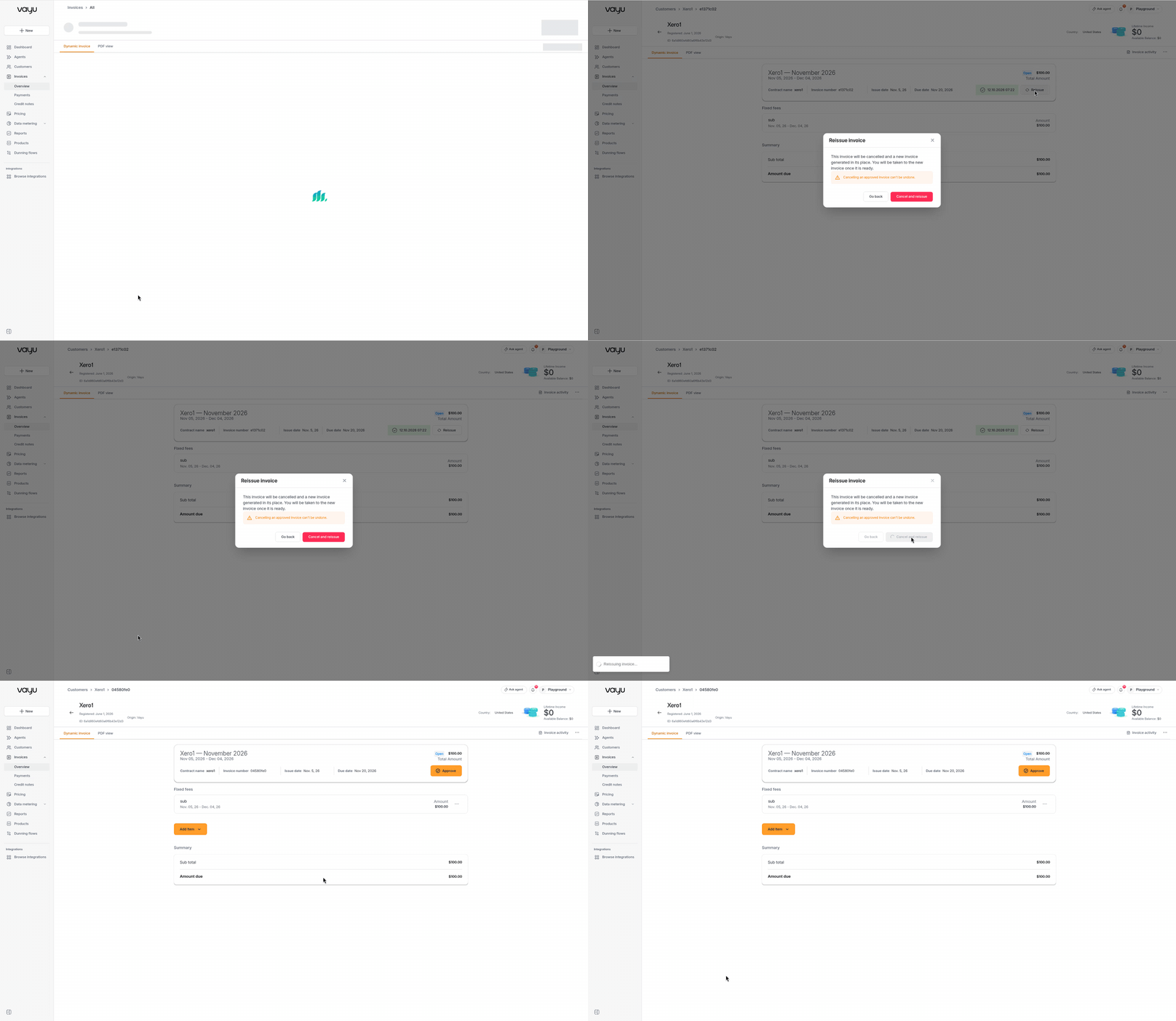
Reissue cancels the approved invoice and generates a new one in its place, using the current usage. Use it after the usage data has been corrected.
Open the approved invoice and click Reissue in the header.
In the Reissue invoice dialog, review the warning and click Cancel and reissue. To keep the invoice, click Go back.
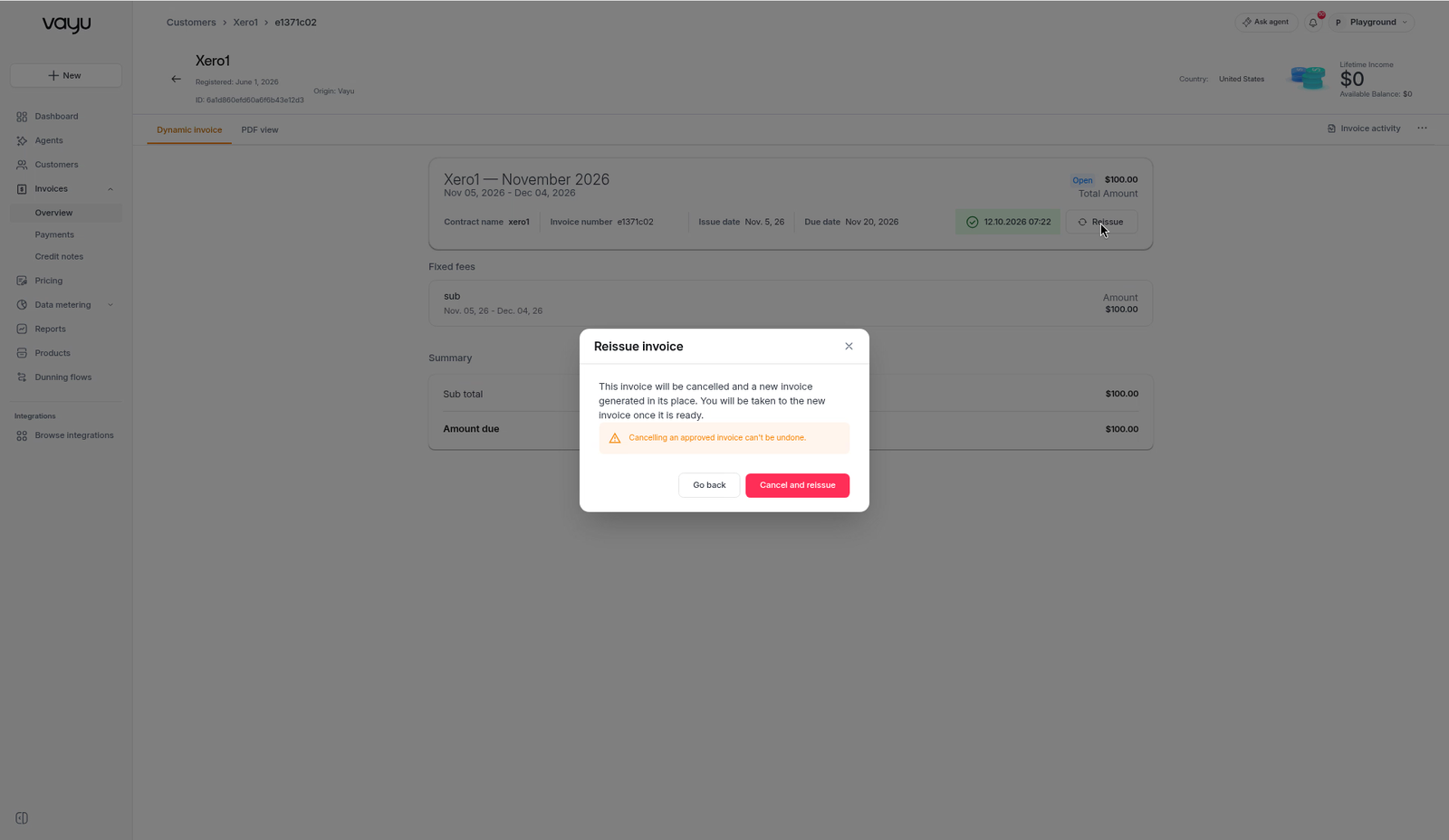
The original invoice is marked Cancelled and labeled Reissued. Review and approve the new invoice.
If you don't see Reissue on an approved invoice, contact Vayu to enable it for your account.
Reissue isn't available if the invoice already has payments or credits applied, if it was already reissued, or if it belongs to a parent or child customer invoice.
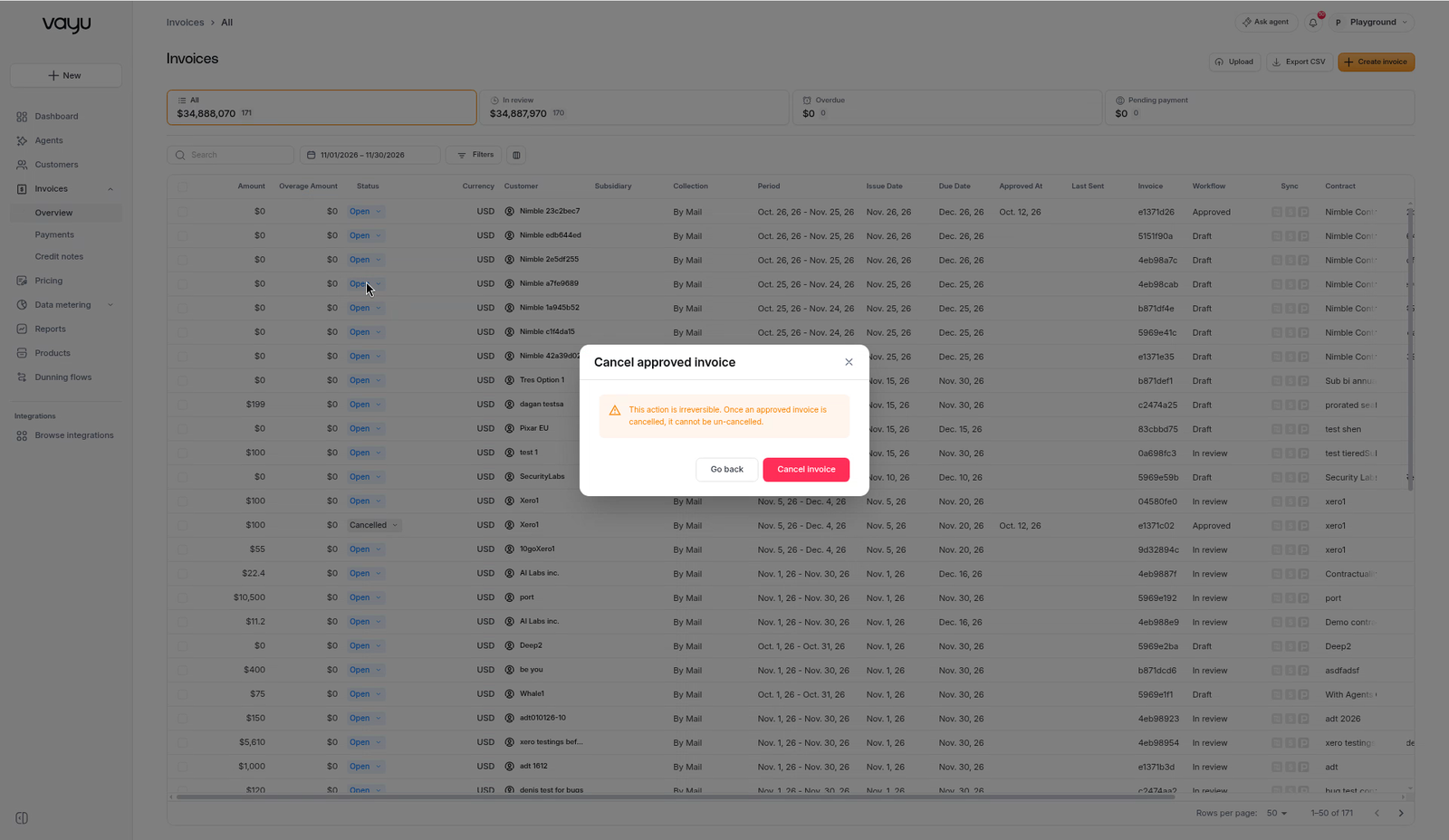
Cancelling an approved invoice can't be undone. When you choose Cancelled for an approved invoice in the Status dropdown, Vayu shows a Cancel approved invoice dialog. Click Cancel invoice to confirm, or Go back to keep it.