

Branding your invoices
Add your logo, company details, and footer note to invoices, and send billing emails from your own domain
Overview
You can put your company's brand on invoices before you send them. This page covers each branding option, where to set it, and where it shows up.
What You Can Brand
| Option | Where to set it | Applies to |
|---|---|---|
| Company logo | Settings → General → Account info | Whole account |
| Bill From and bank details | Settings → General (or Settings → Entities for subsidiaries) | Account, or per subsidiary |
| Footer note | Settings → Invoices preferences → Invoice footer | Account, with per plan or contract overrides |
| Display options | Invoice format editor on a plan or contract | Per plan or contract |
| Sender email address | Settings → Invoices preferences → Billing email | Whole account |
Adding Your Company Logo
- Open Settings from the dropdown under your company name in the upper righthand corner.
- Go to General → Account info.
- Under Company logo, click Click to upload or drag and drop your image.
- Click Save. The logo is only uploaded when you save.
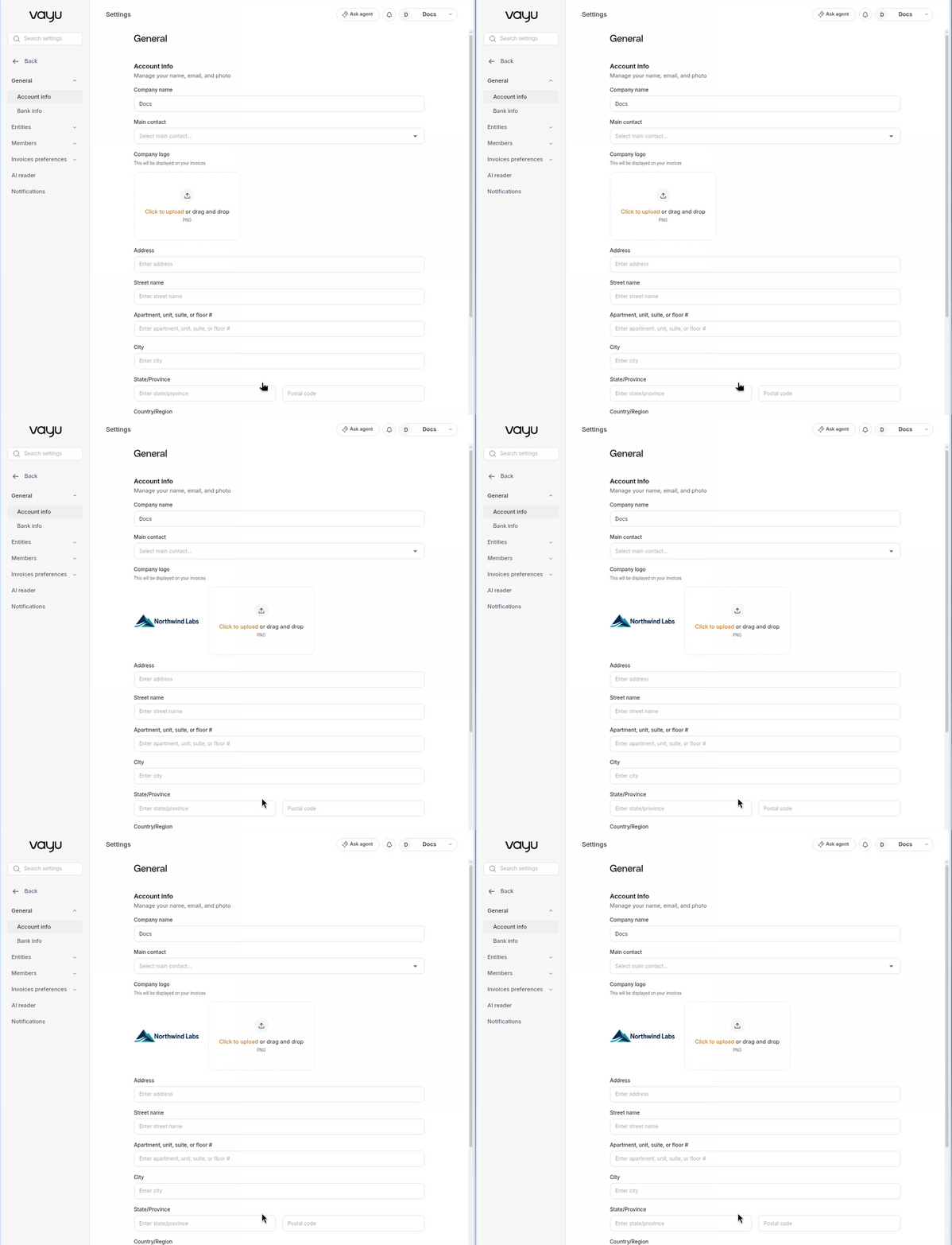
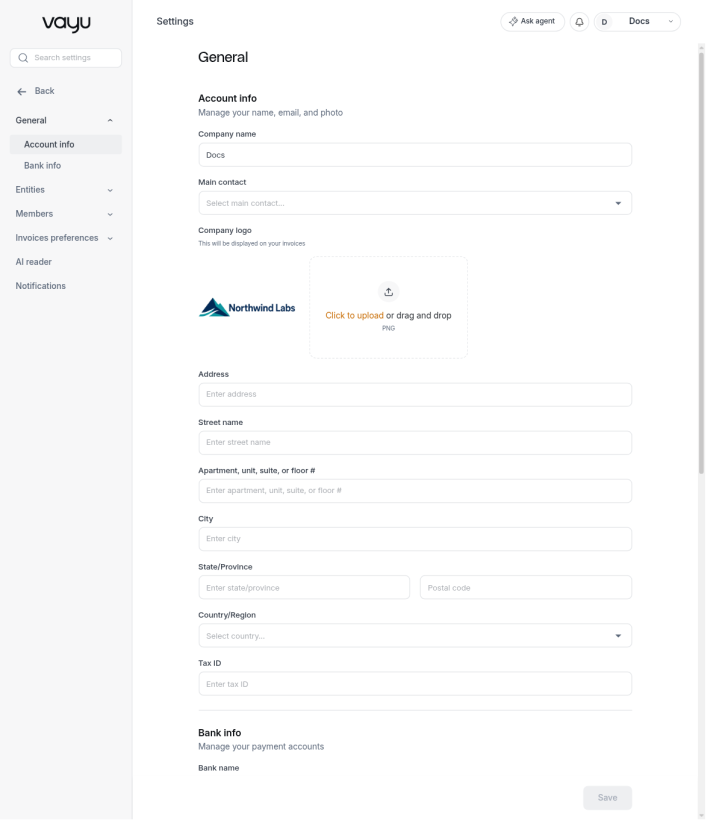
The logo must be a PNG file. A wide logo with a transparent background looks best on invoices.
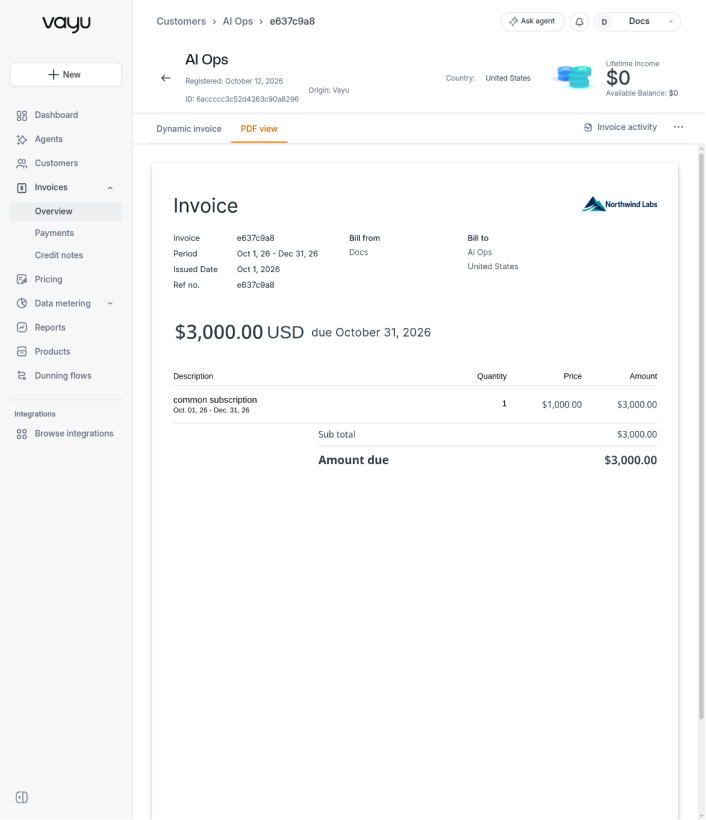
Once saved, your logo appears on:
- Invoice PDFs
- Credit notes
- Invoice and dunning emails
- The customer portal
Bill From and Bank Details
The Bill from block on each invoice uses the company name, address, and tax ID you enter in Settings → General → Account info. Bank details from Bank info are printed on the invoice so customers know where to pay.
If you bill through more than one legal entity, add subsidiaries under Settings → Entities and assign customers to them. Invoices for those customers show the subsidiary's details in the Bill from block instead. The logo stays the same for the whole account. See Entities.
Adding a Footer Note
Use the footer note for payment terms, tax wording, or a thank-you message. It's printed at the bottom of every invoice PDF.
- Go to Settings → Invoices preferences → Invoice footer.
- Enter your text in Footer note (up to 1,000 characters).
- Click Save.
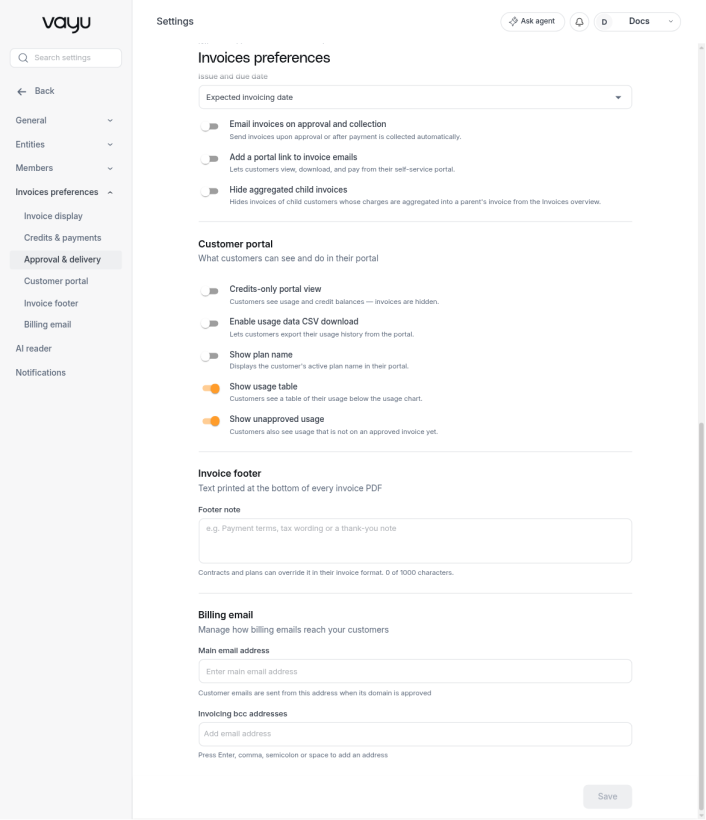
Plans and contracts can override the account footer note with their own in the Invoice format editor (see below).
Display Options and Live Preview
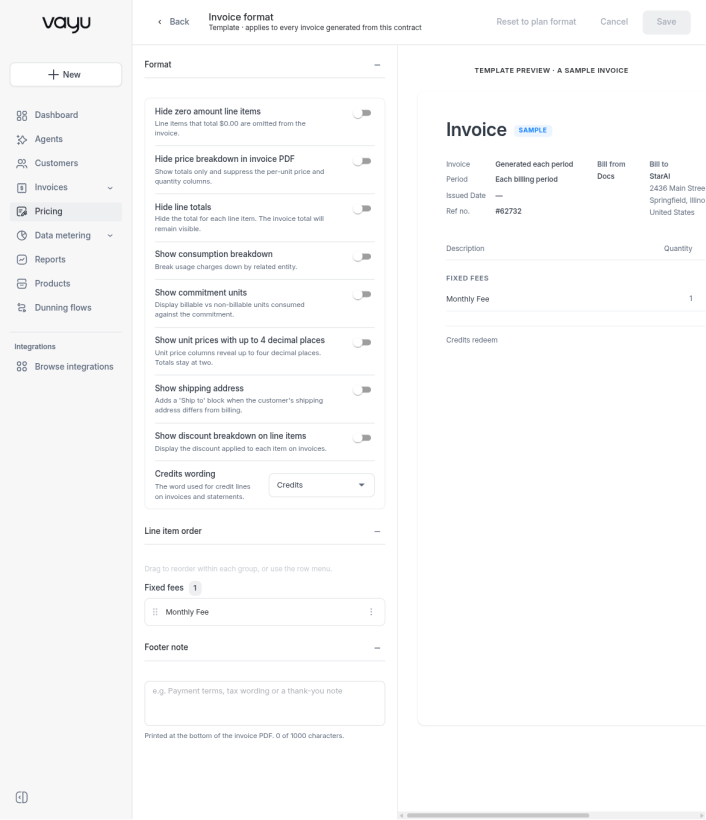
Each plan or contract has an Invoice format editor where you control how its invoices look. To open it on a contract, click the ⋮ menu and select Invoice formatting.
In the editor you can:
- Toggle display options such as hiding zero amount line items, hiding the price breakdown, hiding line totals, showing a consumption breakdown, showing commitment units, showing up to 4 decimal places, showing the shipping address, and showing discount breakdowns
- Choose the wording used for credit lines
- Reorder line items
- Set a footer note that overrides the account-wide one
The template preview on the right shows a sample invoice as you make changes. Click Save to apply, or Reset to plan format to drop a contract's overrides.
Sending Emails From Your Own Domain
By default, invoice emails come from Vayu. To send them from your own address, enter it in Settings → Invoices preferences → Billing email → Main email address. Emails are sent from this address once its domain is approved by the Vayu team. Contact Vayu support to start the approval.
You can also add Invoicing bcc addresses to receive a copy of every invoice email.
Existing Invoices and Limits
- Existing invoices: a newly uploaded logo appears on existing invoices the next time their PDF is generated.
- One logo per account: you can't set a different logo per customer, subsidiary, or plan.
- No custom styling: colors, fonts, and invoice templates can't be changed.