

BigQuery
Import usage events into Vayu from a Google BigQuery table or view.
The BigQuery integration lets Vayu read usage events straight from a table or view in your Google BigQuery project. Your usage data stays in BigQuery, and Vayu checks the table every hour for new rows and turns each row into a usage event for billing.
This page covers how the integration works, how to prepare the table, how to create a read-only service account for Vayu, and how to connect it in the app.
How It Works
- Vayu connects with a Google Cloud service account key that you create and paste into Vayu.
- Every hour, Vayu queries the table for rows whose timestamp is newer than the last row it imported. To give late writes time to land, each run stops 5 minutes before the current time.
- Each row becomes one event. The required columns map to the event's fields, and every other column is stored in the event's
data. - The first run starts from the Import from date you choose. If you leave it empty, Vayu starts one day back.
Before You Begin
Make sure you have:
- A BigQuery table or view that holds one row per usage event.
- Permission to create service accounts and keys in Google Cloud.
- Permission to grant access to the dataset that holds the table.
Prepare the Table
The table or view must have these columns, named exactly as shown:
| Column | Type | Maps to |
|---|---|---|
ref | STRING | The event's unique reference. Use a stable ID so the same row is never billed twice. |
timestamp | TIMESTAMP | When the event happened. |
customerAlias | STRING | The customer the event belongs to. It must match the customer's alias in Vayu. |
name | STRING | The event name, for example api_call. |
Any other column, such as quantity or region, is copied into the event's data and can be used in your metering rules.
CREATE TABLE billing.usage_events (
  ref STRING NOT NULL,
  timestamp TIMESTAMP NOT NULL,
  customerAlias STRING NOT NULL,
  name STRING NOT NULL,
  quantity INT64
)
PARTITION BY DATE(timestamp);
Partition the table on the timestamp column. Without it, every hourly run scans the whole table, which costs more as the table grows. Test connection warns you when the table isn't partitioned this way.
If your raw data uses different column names, create a view that renames them rather than changing the source table.
Create a Service Account for Vayu
Give Vayu its own service account with read-only access.
- In the Google Cloud console, go to IAM & Admin → Service accounts and create a service account, for example
vayu-usage-reader. - Grant it BigQuery Job User (
roles/bigquery.jobUser) on the project the service account belongs to, so it can run queries. - Grant it BigQuery Data Viewer (
roles/bigquery.dataViewer) on the dataset that holds the table, so it can read the rows. - Open the service account, go to Keys → Add key → Create new key, and choose JSON. Google downloads the key file. Google only lets you download a key once, when you create it. If you lose the file, create a new key.
Prefer granting Data Viewer on the dataset rather than the whole project, so Vayu can only read that dataset. For more on keys, see Google's guide to creating service account keys.
The key file is a credential. Paste it into Vayu and then delete the downloaded copy.
Connect BigQuery in Vayu
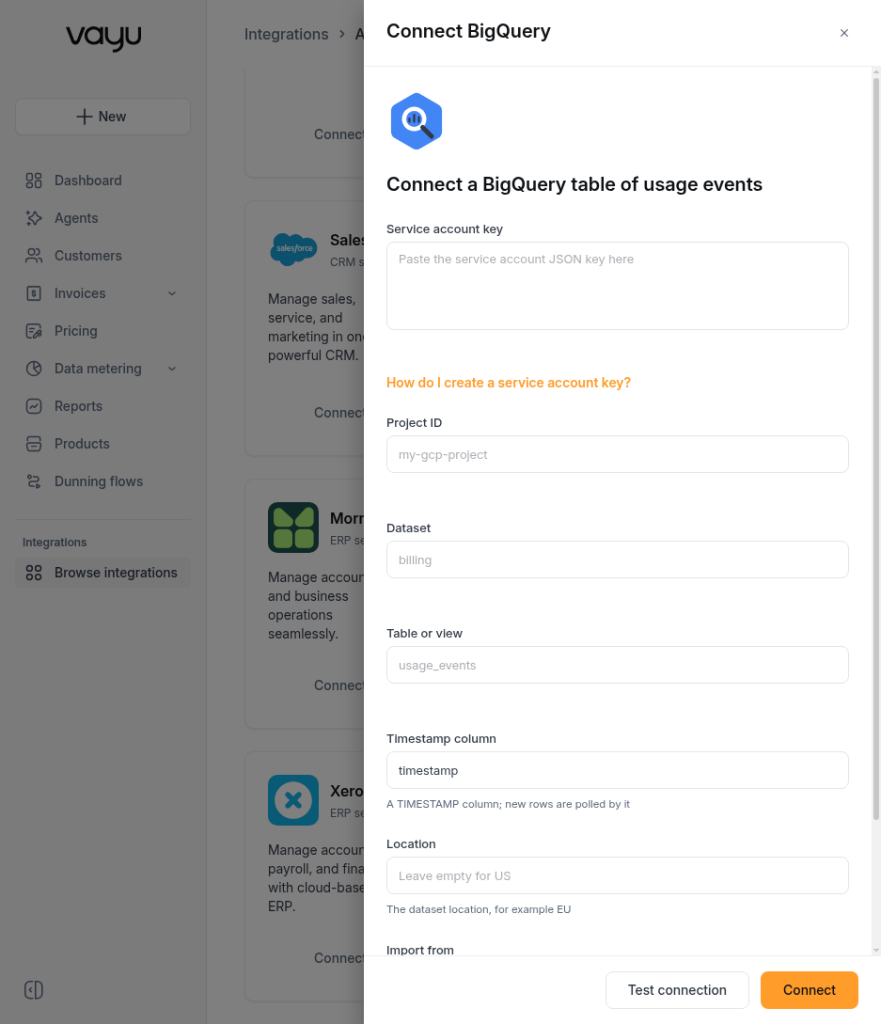
- Go to Integrations and select BigQuery.
- Paste the full contents of the JSON key into Service account key. Vayu fills Project ID from the key.
- Fill in the source table:
- Project ID: the project that holds the table. Change it if the table lives in a different project than the service account.
- Dataset: the dataset name, for example
billing. - Table or view: the table or view name, for example
usage_events. - Timestamp column: the TIMESTAMP column Vayu uses to find new rows. It defaults to
timestamp. - Location: the dataset's location, for example
EU. Leave it empty forUS.
- Set the import options:
- Import from: the date the first import starts from. It only applies before the first run.
- Auto-import events: keep this on to check the table every hour.
- Click Test connection, fix anything it reports, and then click Connect.
Test Connection Results
Test connection reads the table's schema and runs a small query, and reports what it finds:
| Result | What it means | How to fix it |
|---|---|---|
| The table can't be reached | Vayu couldn't read the table's details. | Check the project, dataset, table name and location, and that the service account has Data Viewer on the dataset. |
| Missing required columns | One or more of ref, timestamp, customerAlias or name isn't in the table. | Add the columns, or point Vayu at a view that renames them. |
| Timestamp column type | The timestamp column is missing or isn't a TIMESTAMP. | Use a TIMESTAMP column, or cast it in a view. |
| Query failed | Vayu could read the schema but couldn't query the table. | Check that the service account has BigQuery Job User on its project. |
| Not partitioned (warning) | The table works, but isn't partitioned on the timestamp column. | You can still connect. Partition the table to keep query costs down. |
Change the Configuration
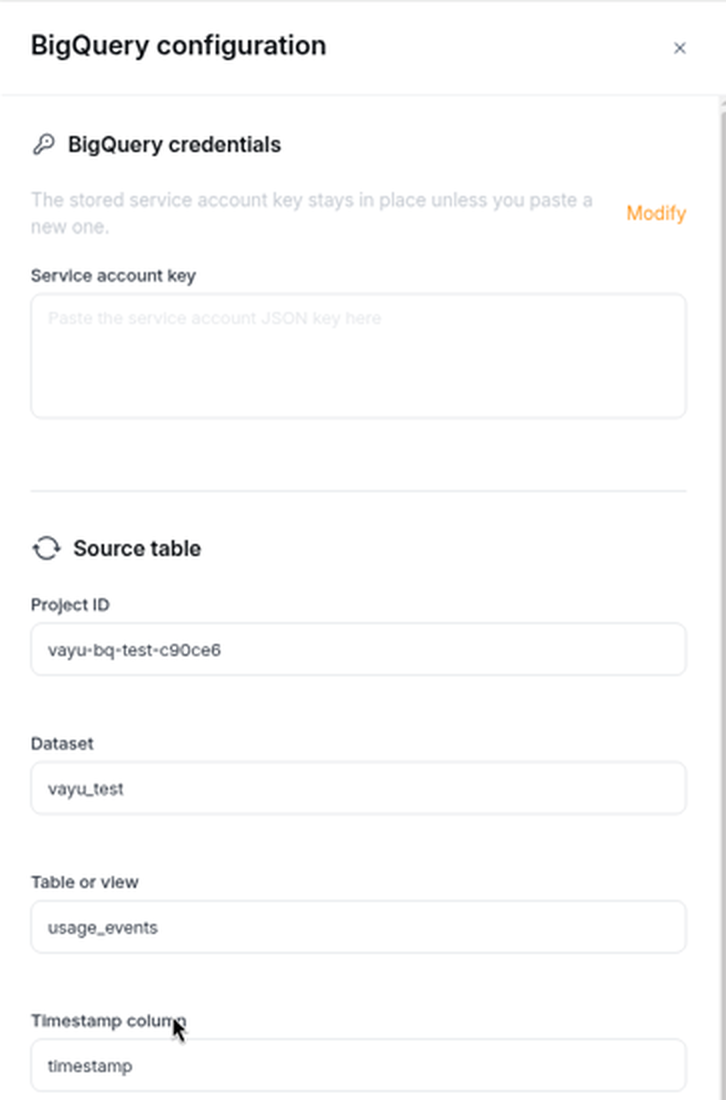
After connecting, click Manage on the BigQuery card to open BigQuery configuration. You can change the source table and import options there.
The stored service account key stays in place unless you replace it. To use a new key, click Modify under BigQuery credentials and paste the new JSON key.
Check Your Events
Once connected, imported rows appear under Data metering → Events after the next hourly run. Each event shows the ref, name and customerAlias from its row, with the extra columns under Data.
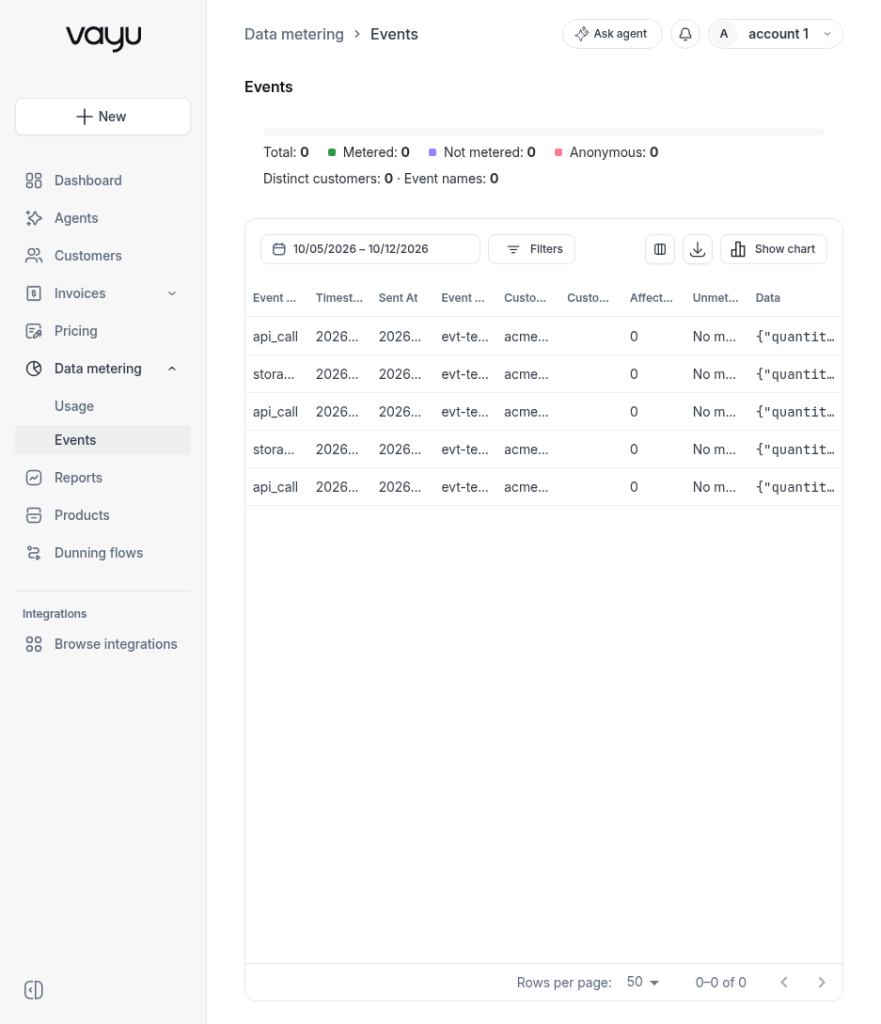
If events don't show up, check that the rows' timestamps are after the Import from date and more than 5 minutes old, and that each customerAlias matches a customer in Vayu.